
If you wish to add a Google News feed to your website and display it with the FeedWind widget, you just need to follow our instructions. There are two main steps.
Step 1: Set up a Google News RSS Feed
- You need to manually create a RSS feed URL.
- You can display them by “Top News”, topic, or search query.
- For Top News use the following format:
https://news.google.com/news/rss
To display the news by topic, use:
https://news.google.com/news/rss/headlines/section/topic/{topic}
If you want to have the news listed by the search query, use:
https://news.google.com/rss/search?q={query} - If you wish to have news in English and located from the United States sources, add the following query string to the URL to change country and language:
&hl=en-US&gl=US&ceid=US:en
Step 2: Set up a FeedWind widget
To create a FeedWind widget, you will need to have a FeedWind account and to be signed in. If you don’t have an account, it will take you about 1 minute to sign up. It’s really easy!
- Click the Create Widget button (you can find it at the top right corner of your screen) and then select RSS Feed
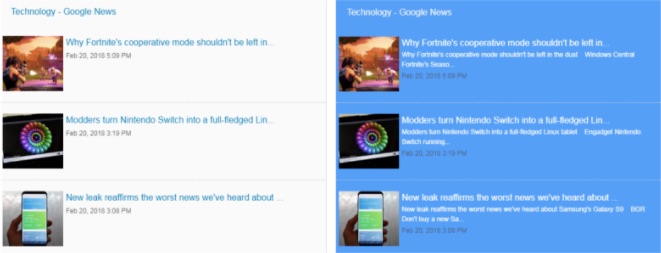
- Now you will copy the Google News feed address you retrieved in Step 1 and paste it to the Feed URL box. Click anywhere outside the box and you will see the preview of the widget on the right side.
- If you wish, you can customize your widget and play with the color, size, style, or scroll type so as to match the style and colors of your website.
 Arjun's Blog