What’s new in C#

 The C# language relies on types and methods in a standard library for some of the features. One example is exception processing. Every throw statement or expression is checked to ensure the object being thrown is derived from Exception. Similarly, every catch is checked to ensure that the type being caught is derived from Exception. Each version may add new requirements. To use the latest language features in older environments, you may need to install specific libraries. These dependencies are documented in the page for each specific version. You can learn more about the relationships between language and library for background on this dependency.
To use the latest features in a point release, you need to configure the compiler language version and select the version.

Previous Versions

The following lists key features that were introduced in previous versions of the C# language and Visual Studio .NET.
  • Visual Studio .NET 2013:
    • This version of Visual Studio included bug fixes, performance improvements, and technology previews of .NET Compiler Platform (“Roslyn”) which became the .NET Compiler Platform SDK.
  • C# 5, Visual Studio .NET 2012:
  • C# 4, Visual Studio .NET 2010:
  • C# 3, Visual Studio .NET 2008:
    • Object and collection initializers, lambda expressions, extension methods, anonymous types, automatic properties, local var type inference, and Language Integrated Query (LINQ).
  • C# 2, Visual Studio .NET 2005:
    • Anonymous methods, generics, nullable types, iterators/yield, static classes, and covariance and contra variance for delegates.
  • C# 1.1, Visual Studio .NET 2003:
    • #line pragma and xml doc comments.
  • C# 1, Visual Studio .NET 2002:
    • The first release of C#.
What is .NET?

.NET

.NET is a free, cross-platform, open source developer platform for building many different types of applications.
With .NET, you can use multiple languages, editors, and libraries to build for web, mobile, desktop, gaming, and IoT.

Languages

You can write .NET apps in C#, F#, or Visual Basic.
  • C# is a simple, modern, object-oriented, and type-safe programming language.
  • F# is a cross-platform, open-source, functional programming language for .NET. It also includes object-oriented and imperative programming.
  • Visual Basic is an approachable language with a simple syntax for building type-safe, object-oriented apps.

Cross Platform

Whether you’re working in C#, F#, or Visual Basic, your code will run natively on any compatible OS. Different .NET implementations handle the heavy lifting for you:
  • .NET Core is a cross-platform .NET implementation for websites, servers, and console apps on Windows, Linux, and macOS.
  • .NET Framework supports websites, services, desktop apps, and more on Windows.
  • Xamarin/Mono is a .NET implementation for running apps on all the major mobile operating systems.

One consistent API

.NET Standard is a base set of APIs that are common to all .NET implementations.
Each implementation can also expose additional APIs that are specific to the operating systems it runs on. For example, .NET Framework is a Windows-only .NET implementation that includes APIs for accessing the Windows Registry.

Libraries

To extend functionality, Microsoft and others maintain a healthy package ecosystem built on .NET Standard.
NuGet is a package manager built specifically for .NET that contains over 90,000 packages.

What is the difference between ASP.Net Core and ASP.Net?

    What is ASP.NET Core ?
    ASP.NET Core is a new open-source and cross-platform .NET framework for building modern cloud-based web applications on Windows, Mac, or Linux.
    ASP.NET Core is the open-source version of ASP.NET, that runs on Windows, Linux, macOS, and Docker.

    ASP.NET Core is a cross-platform, high-performance, open-source framework for building modern, cloud-based, Internet-connected applications. With ASP.NET Core, you can:
    • Build web apps and services, IoT apps, and mobile backends.
    • Use your favorite development tools on Windows, macOS, and Linux.
    • Deploy to the cloud or on-premises.
    • Run on .NET Core or .NET Framework.
    ASP.NET is a popular web-development framework for building web apps on the .NET platform.
    ASP.NET Core is the open-source version of ASP.NET, that runs on macOS, Linux, and Windows. ASP.NET Core was first released in 2016 and is a re-design of earlier Windows-only versions of ASP.NET.

    Why ASP.NET Core?

    Millions of developers have used (and continue to use) ASP.NET 4.x to create web apps. ASP.NET Core is a redesign of ASP.NET 4.x, with architectural changes that result in a leaner, more modular framework.
    ASP.NET Core provides the following benefits:

    Performance

    Performance is a key focus of ASP.NET Core. It’s faster than other popular web frameworks in the independent TechEmpower benchmarks.

    Modern & innovative

    ASP.NET Core is designed to allow runtime components, APIs, compilers and languages evolve quickly, while still providing a stable and supported platform to keep apps running.
    Multiple versions of ASP.NET Core can exists side-by-side on the same server. Meaning one app can adopt the latest version, while other apps keep running on the version they were tested on.
    ASP.NET Core provides various support lifecycle options to meet the needs of your app. You can chose a long-term support release, or run with the latest release if you commit to upgrade more often. See our support policy for more details.

    Open-source

    Like the rest of .NET, ASP.NET is open source on GitHub. Over 60,000 developers and 3,700 companies have already contributed to .NET.

      Windows, Linux, macOS, and Docker

      ASP.NET apps can be developed and run on Windows, Linux, macOS, and Docker.
      The Visual Studio family of products has tools for building .NET apps on any operating system. There are also command line tools and extensions for many popular editors.

      Flexible deployment

      The ASP.NET Core runtime that your app runs on can be deployed as part of your app, or installed centrally on your web server. ASP.NET Core is also perfectly suited for Docker containers.

    What is ASP.NET ?

    ASP.NET is a mature web platform that provides all the services that you require to build enterprise-class server-based web applications using .NET on Windows.


    The following table compares ASP.NET Core to ASP.NET 4.x.
    ASP.NET Core ASP.NET 4.x
    Build for Windows, macOS, or Linux Build for Windows
    Razor Pages is the recommended approach to create a Web UI as of ASP.NET Core 2.x. See also MVCWeb API, and SignalR. Use Web FormsSignalRMVCWeb APIWebHooks, or Web Pages
    Multiple versions per machine One version per machine
    Develop with Visual Studio, Visual Studio for Mac, or Visual Studio Code using C# or F# Develop with Visual Studio using C#, VB, or F#
    Higher performance than ASP.NET 4.x Good performance
    Choose .NET Framework or .NET Core runtime Use .NET Framework runtime

Optimize build performance for solution

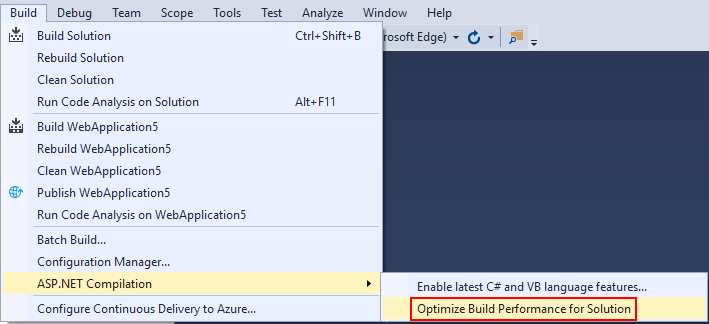
Visual Studio 2017 15.8 or later include a menu item: Build > ASP.NET Compilation > Optimize Build Performance for Solution.
Screenshot of the new menu item
ASP.NET compiles its views at runtime, which means that an ASP.NET project carries with it a copy of the compiler. However on a developer machine when the copy of the compiler doesn’t match Visual Studio’s copy, build performance is impacted on the order of 1-3 seconds per incremental build. This feature updates your project’s copy of the compiler to match Visual Studio’s, which usually speeds up incremental builds.
This is applicable to ASP.NET Framework 4.7.1 or later projects only, it does not apply to ASP.NET Core.

ASP.NET MVC 4 Application using Web Deploy Azure

 Installing Visual Studio Express 2012 for Web

You can install Microsoft Visual Studio Express 2012 for Web or another “Express” version using the Microsoft Web Platform Installer. The following instructions guide you through the steps required to install Visual studio Express 2012 for Web using Microsoft Web Platform Installer.
  1. Go to [https://go.microsoft.com/?linkid=9810169](https://go.microsoft.com/?linkid=9810169). Alternatively, if you already have installed Web Platform Installer, you can open it and search for the product “Visual Studio Express 2012 for Web with Azure SDK“.
  2. Click on Install Now. If you do not have Web Platform Installer you will be redirected to download and install it first.
  3. Once Web Platform Installer is open, click Install to start the setup.
    Install Visual Studio Express
    Install Visual Studio Express
  4. Read all the products’ licenses and terms and click I Accept to continue.
    Accepting the license terms
    Accepting the license terms
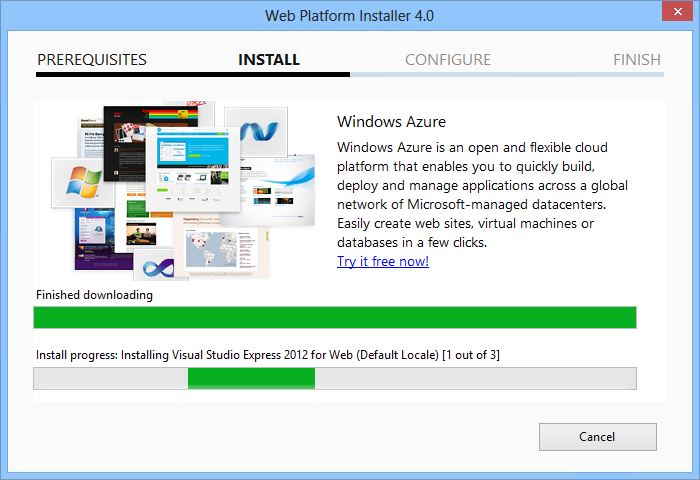
  5. Wait until the downloading and installation process completes.
    Installation progress
    Installation progress
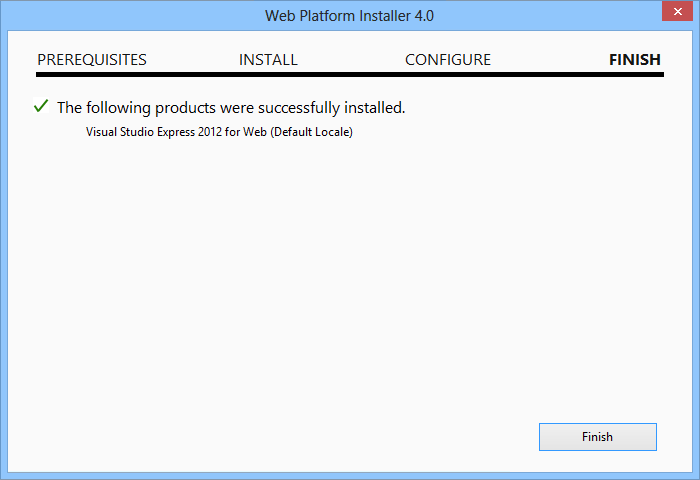
  6. When the installation completes, click Finish.
    Installation completed
    Installation completed
  7. Click Exit to close Web Platform Installer.
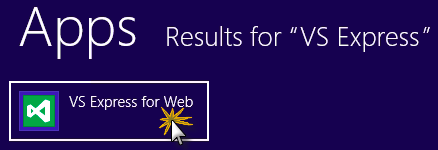
  8. To open Visual Studio Express for Web, go to the Start screen and start writing “VS Express“, then click on the VS Express for Web tile.
    VS Express for Web tile
    VS Express for Web tile

Appendix C: Publishing an ASP.NET MVC 4 Application using Web Deploy

This appendix will show you how to create a new web site from the Azure Portal and publish the application you obtained by following the lab, taking advantage of the Web Deploy publishing feature provided by Azure.

Task 1 – Creating a New Web Site from the Azure Portal

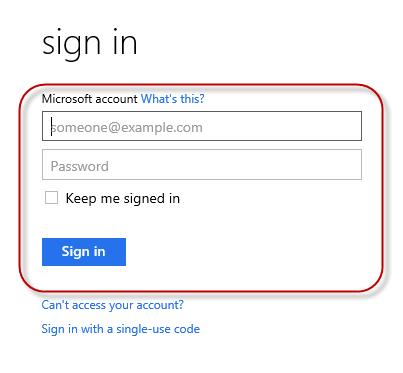
  1. Go to the Azure Management Portal and sign in using the Microsoft credentials associated with your subscription.
    Note
    With Azure you can host 10 ASP.NET Web Sites for free and then scale as your traffic grows. You can sign up here.
    Log on to Windows Azure portal
    Log on to Portal
  2. Click New on the command bar.
    Creating a new Web Site
    Creating a new Web Site
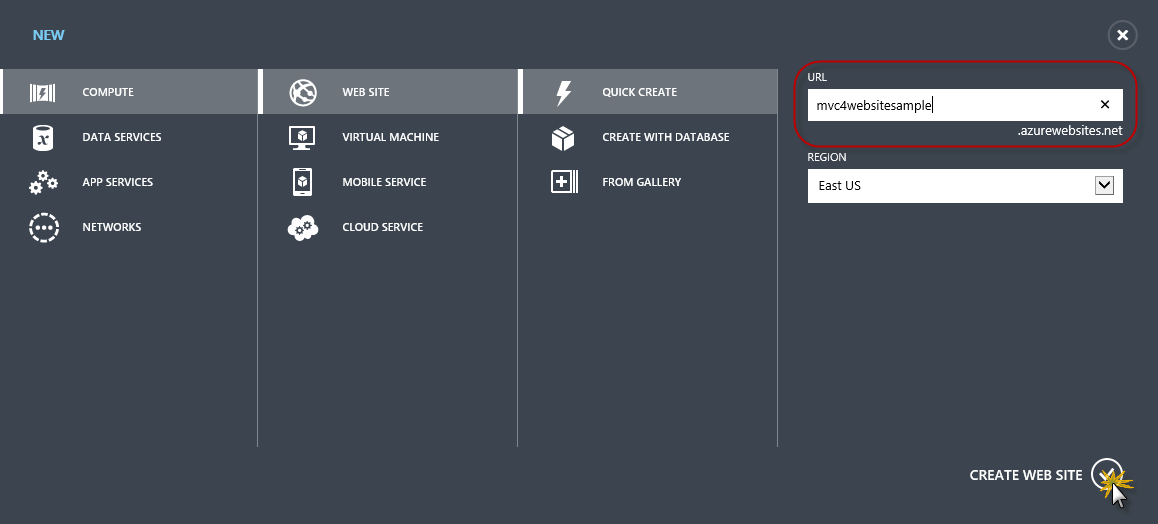
  3. Click Compute | Web Site. Then select Quick Create option. Provide an available URL for the new web site and click Create Web Site.
    Note
    Azure is the host for a web application running in the cloud that you can control and manage. The Quick Create option allows you to deploy a completed web application to the Azure from outside the portal. It does not include steps for setting up a database.
    Creating a new Web Site using Quick Create
    Creating a new Web Site using Quick Create
  4. Wait until the new Web Site is created.
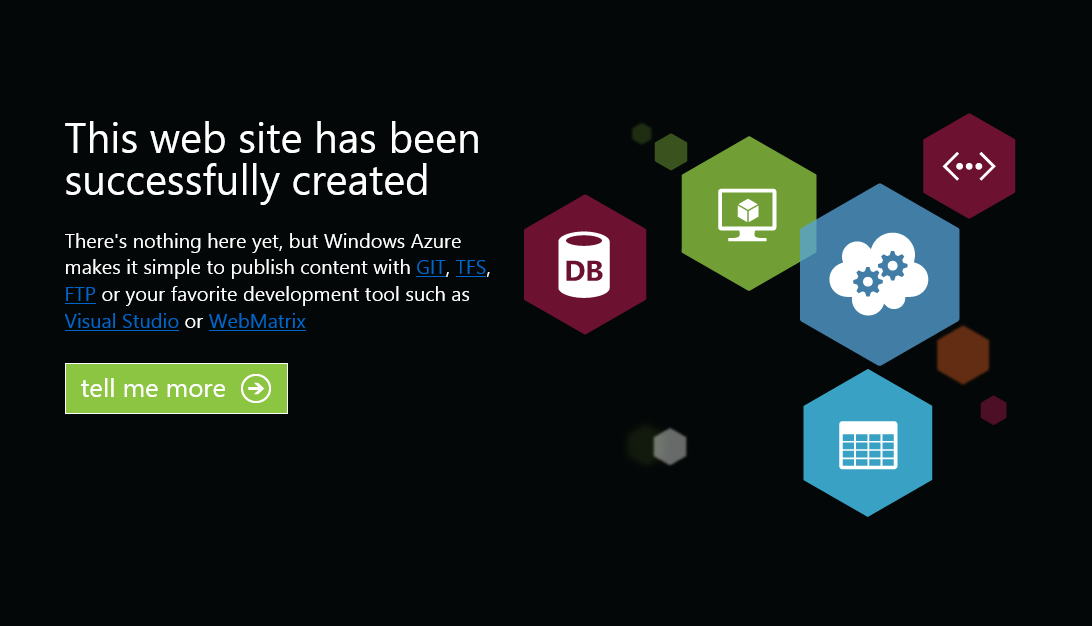
  5. Once the Web Site is created click the link under the URL column. Check that the new Web Site is working.
    Browsing to the new web site
    Browsing to the new web site
    Web site running
    Web site running
  6. Go back to the portal and click the name of the web site under the Name column to display the management pages.
    Opening the web site management pages
    Opening the Web Site management pages
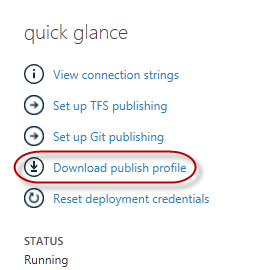
  7. In the Dashboard page, under the quick glance section, click the Download publish profile link.
    Note
    The publish profile contains all of the information required to publish a web application to a Azure for each enabled publication method. The publish profile contains the URLs, user credentials and database strings required to connect to and authenticate against each of the endpoints for which a publication method is enabled. Microsoft WebMatrix 2Microsoft Visual Studio Express for Web and Microsoft Visual Studio 2012 support reading publish profiles to automate configuration of these programs for publishing web applications to Azure.
    Downloading the web site publish profile
    Downloading the Web Site publish profile
  8. Download the publish profile file to a known location. Further in this exercise you will see how to use this file to publish a web application to Azure from Visual Studio.
    Saving the publish profile file
    Saving the publish profile file

Task 2 – Configuring the Database Server

If your application makes use of SQL Server databases you will need to create a SQL Database server. If you want to deploy a simple application that does not use SQL Server you might skip this task.
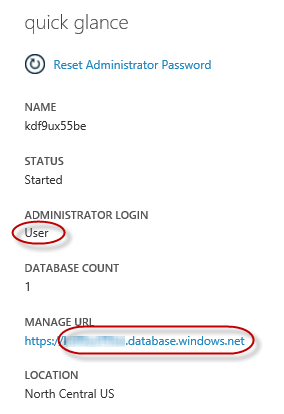
  1. You will need a SQL Database server for storing the application database. You can view the SQL Database servers from your subscription in the Azure Management portal at Sql Databases | Servers | Server’s Dashboard. If you do not have a server created, you can create one using the Add button on the command bar. Take note of the server name and URL, administrator login name and password, as you will use them in the next tasks. Do not create the database yet, as it will be created in a later stage.
    SQL Database Server Dashboard
    SQL Database Server Dashboard
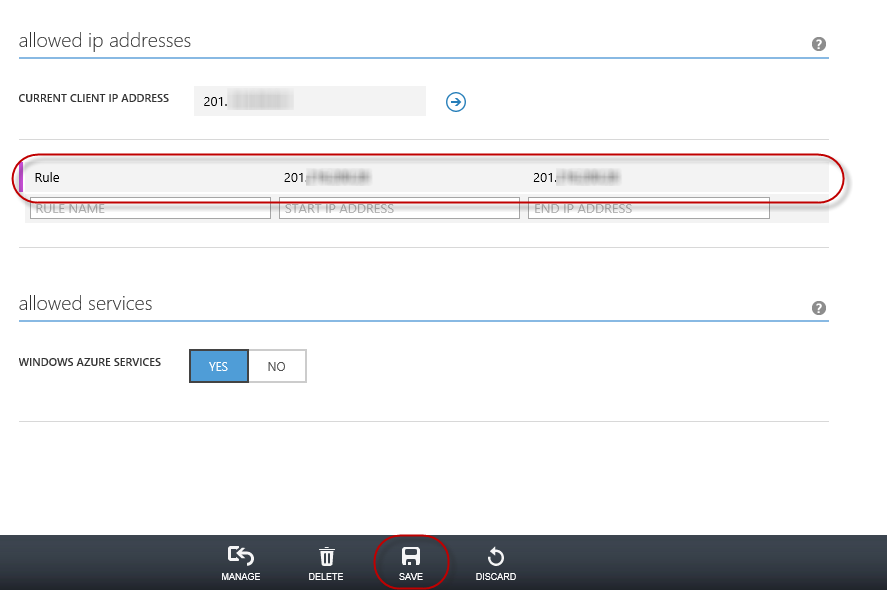
  2. In the next task you will test the database connection from Visual Studio, for that reason you need to include your local IP address in the server’s list of Allowed IP Addresses. To do that, click Configure, select the IP address from Current Client IP Address and paste it on the Start IP Address and End IP Address text boxes and click the add-client-ip-address-ok-button button.
    Adding Client IP Address
    Adding Client IP Address
  3. Once the Client IP Address is added to the allowed IP addresses list, click on Save to confirm the changes.
    Confirm Changes
    Confirm Changes

Task 3 – Publishing an ASP.NET MVC 4 Application using Web Deploy

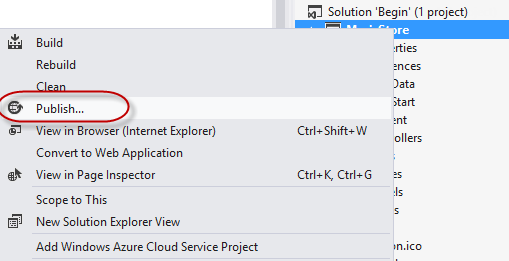
  1. Go back to the ASP.NET MVC 4 solution. In the Solution Explorer, right-click the web site project and select Publish.
    Publishing the Application
    Publishing the web site
  2. Import the publish profile you saved in the first task.
    Importing the publish profile
    Importing publish profile
  3. Click Validate Connection. Once Validation is complete click Next.
    Note
    Validation is complete once you see a green checkmark appear next to the Validate Connection button.
    Validating connection
    Validating connection
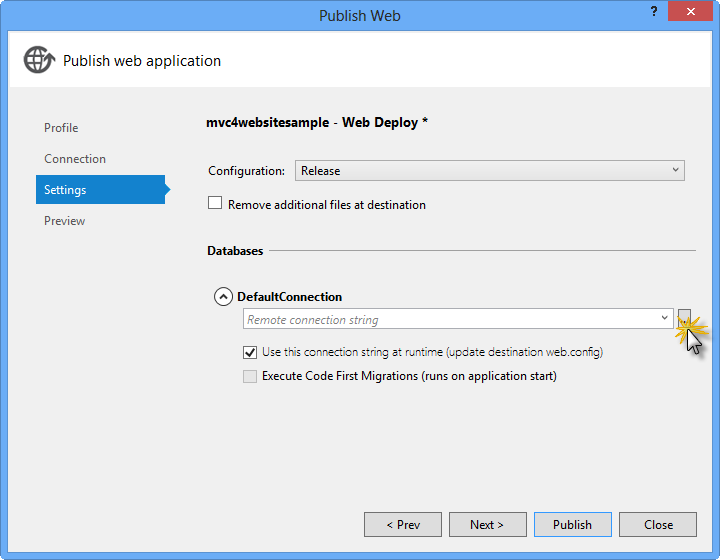
  4. In the Settings page, under the Databases section, click the button next to your database connection’s textbox (i.e. DefaultConnection).
    Web deploy configuration
    Web deploy configuration
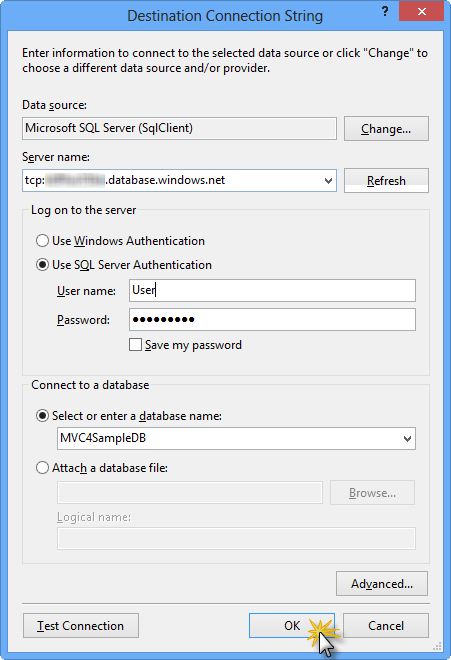
  5. Configure the database connection as follows:
    • In the Server name type your SQL Database server URL using the tcp: prefix.
    • In User name type your server administrator login name.
    • In Password type your server administrator login password.
    • Type a new database name, for example: MVC4SampleDB.
      Configuring destination connection string
      Configuring destination connection string
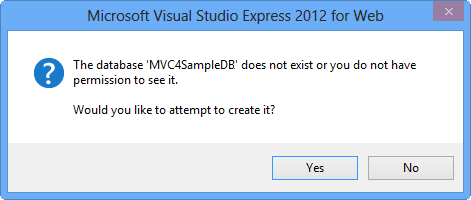
  6. Then click OK. When prompted to create the database click Yes.
    Creating the database
    Creating the database
  7. The connection string you will use to connect to SQL Database in Windows Azure is shown within Default Connection textbox. Then click Next.
    Connection string pointing to SQL Database
    Connection string pointing to SQL Database
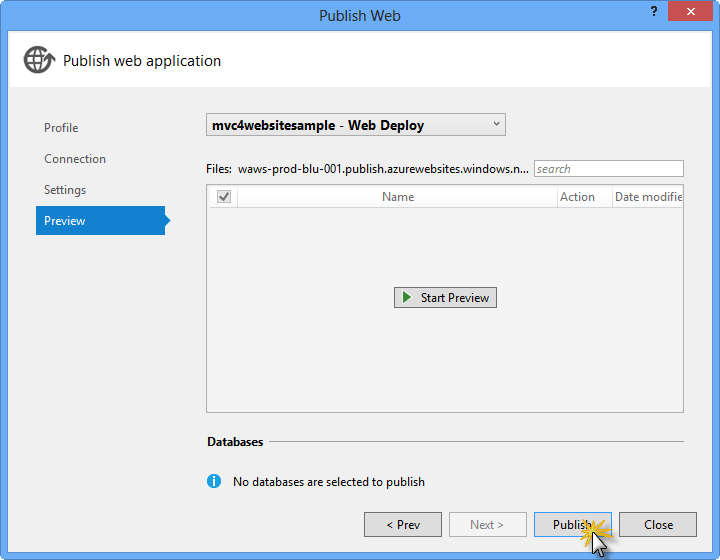
  8. In the Preview page, click Publish.
    Publishing the web application
    Publishing the web application
  9. Once the publishing process finishes, your default browser will open the published web site.
    Application published to Windows Azure

Build RESTful APIs with ASP.NET Web API

In recent years, it has become clear that HTTP is not just for serving up HTML pages. It is also a powerful platform for building Web APIs, using a handful of verbs (GET, POST, and so forth) plus a few simple concepts such as URIs and headers. ASP.NET Web API is a set of components that simplify HTTP programming. Because it is built on top of the ASP.NET MVC runtime, Web API automatically handles the low-level transport details of HTTP. At the same time, Web API naturally exposes the HTTP programming model. In fact, one goal of Web API is to not abstract away the reality of HTTP. As a result, Web API is both flexible and easy to extend. In this hands-on lab, you will use Web API to build a simple REST API for a contact manager application. You will also build a client to consume the API. The REST architectural style has proven to be an effective way to leverage HTTP – although it is certainly not the only valid approach to HTTP. The contact manager will expose the RESTful for listing, adding and removing contacts, among others. This lab requires a basic understanding of HTTP, REST, and assumes you have a basic working knowledge of HTML, JavaScript, and jQuery.
Note
The ASP.NET Web site has an area dedicated to the ASP.NET Web API framework at https://asp.net/web-api. This site will continue to provide late-breaking information, samples, and news related to Web API, so check it frequently if you’d like to delve deeper into the art of creating custom Web APIs available to virtually any device or development framework.
ASP.NET Web API, similar to ASP.NET MVC 4, has great flexibility in terms of separating the service layer from the controllers allowing you to use several of the available Dependency Injection frameworks fairly easy. There is a good sample in MSDN that shows how to use Ninject for dependency injection in an ASP.NET Web API project that you can download it from here.

Objectives

In this hands-on lab, you will learn how to:
  • Implement a RESTful Web API
  • Call the API from an HTML client

Prerequisites

The following is required to complete this hands-on lab:

Setup

Installing Code Snippets
For convenience, much of the code you will be managing along this lab is available as Visual Studio code snippets. To install the code snippets run .\Source\Setup\CodeSnippets.vsi file.
If you are not familiar with the Visual Studio Code Snippets, and want to learn how to use them, you can refer to the appendix from this document “Appendix A: Using Code Snippets“.

Exercises

This hands-on lab includes the following exercise:
  1. Exercise 1: Create a Read-Only Web API
  2. Exercise 2: Create a Read/Write Web API
  3. Exercise 3: Consume the Web API from an HTML Client
Note
Each exercise is accompanied by an End folder containing the resulting solution you should obtain after completing the exercises. You can use this solution as a guide if you need additional help working through the exercises.
Estimated time to complete this lab: 60 minutes.

Exercise 1: Create a Read-Only Web API

In this exercise, you will implement the read-only GET methods for the contact manager.

Task 1 – Creating the API Project

In this task, you will use the new ASP.NET web project templates to create a Web API web application.
  1. Run Visual Studio 2012 Express for Web, to do this go to Start and type VS Express for Web then press Enter.
  2. From the File menu, select New Project. Select the Visual C# | Web project type from the project type tree view, then select the ASP.NET MVC 4 Web Application project type. Set the project’s Name to ContactManager and the Solution name to Begin, then click OK.
    Creating a new ASP.NET MVC 4.0 Web Application Project
    Creating a new ASP.NET MVC 4.0 Web Application Project
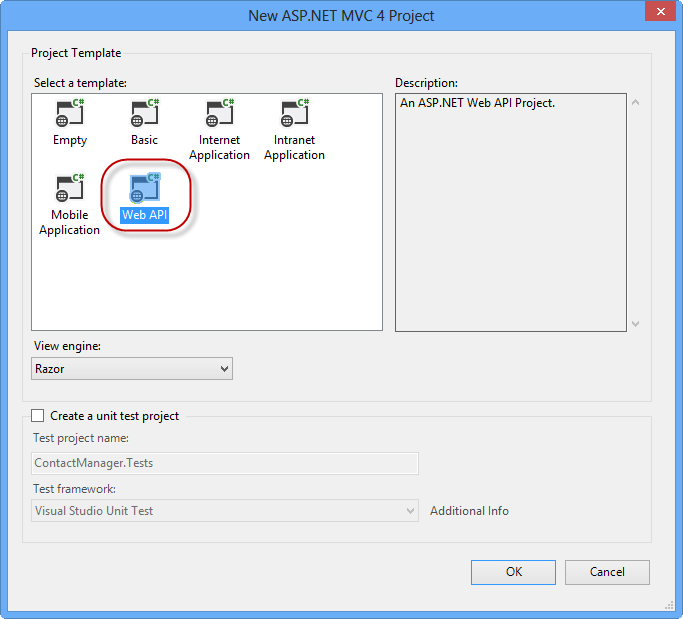
  3. In the ASP.NET MVC 4 project type dialog, select the Web API project type. Click OK.
    Specifying the Web API project type
    Specifying the Web API project type

Task 2 – Creating the Contact Manager API Controllers

In this task, you will create the controller classes in which API methods will reside.
  1. Delete the file named ValuesController.cs within Controllers folder from the project.
  2. Right-click the Controllers folder in the project and select Add | Controller from the context menu.
    Adding a new controller to the project
    Adding a new controller to the project
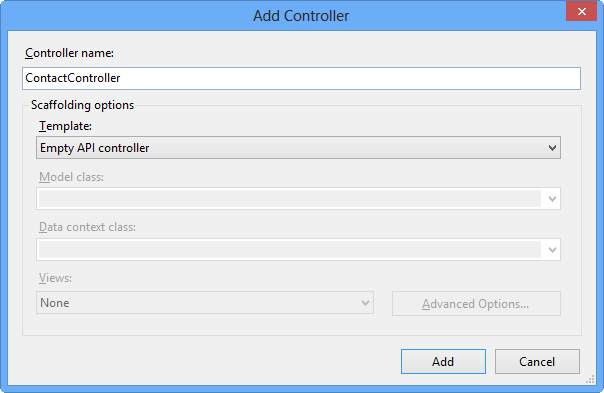
  3. In the Add Controller dialog that appears, select Empty API Controller from the Template menu. Name the controller class ContactController. Then, click Add.
    Using the Add Controller dialog to create a new Web API controller
    Using the Add Controller dialog to create a new Web API controller
  4. Add the following code to the ContactController.
    (Code Snippet – Web API Lab – Ex01 – Get API Method)
    C#Copy
    public string[] Get()
    {
    return new string[]
    {
    "Hello",
    "World"
    };
    }
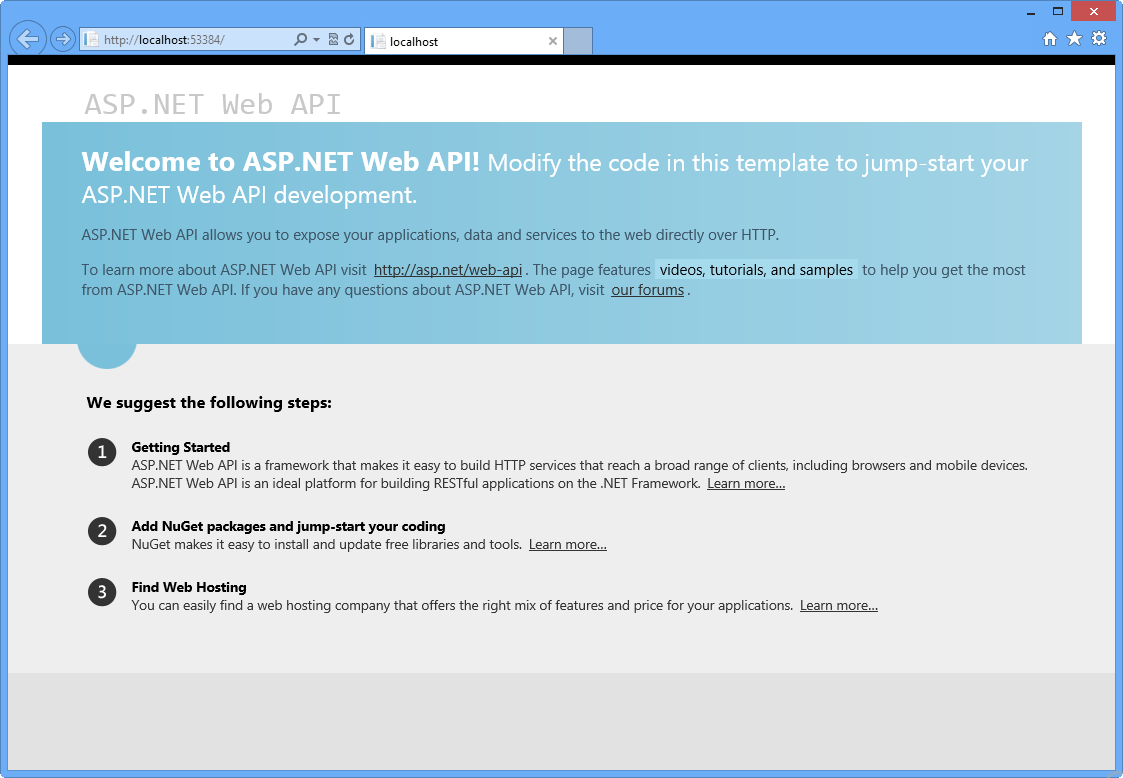
  5. Press F5 to debug the application. The default home page for a Web API project should appear.
    The default home page of an ASP.NET Web API application
    The default home page of an ASP.NET Web API application
  6. In the Internet Explorer window, press the F12 key to open the Developer Tools window. Click the Network tab, and then click the Start Capturing button to begin capturing network traffic into the window.
    Opening the network tab and initiating network capture
    Opening the network tab and initiating network capture
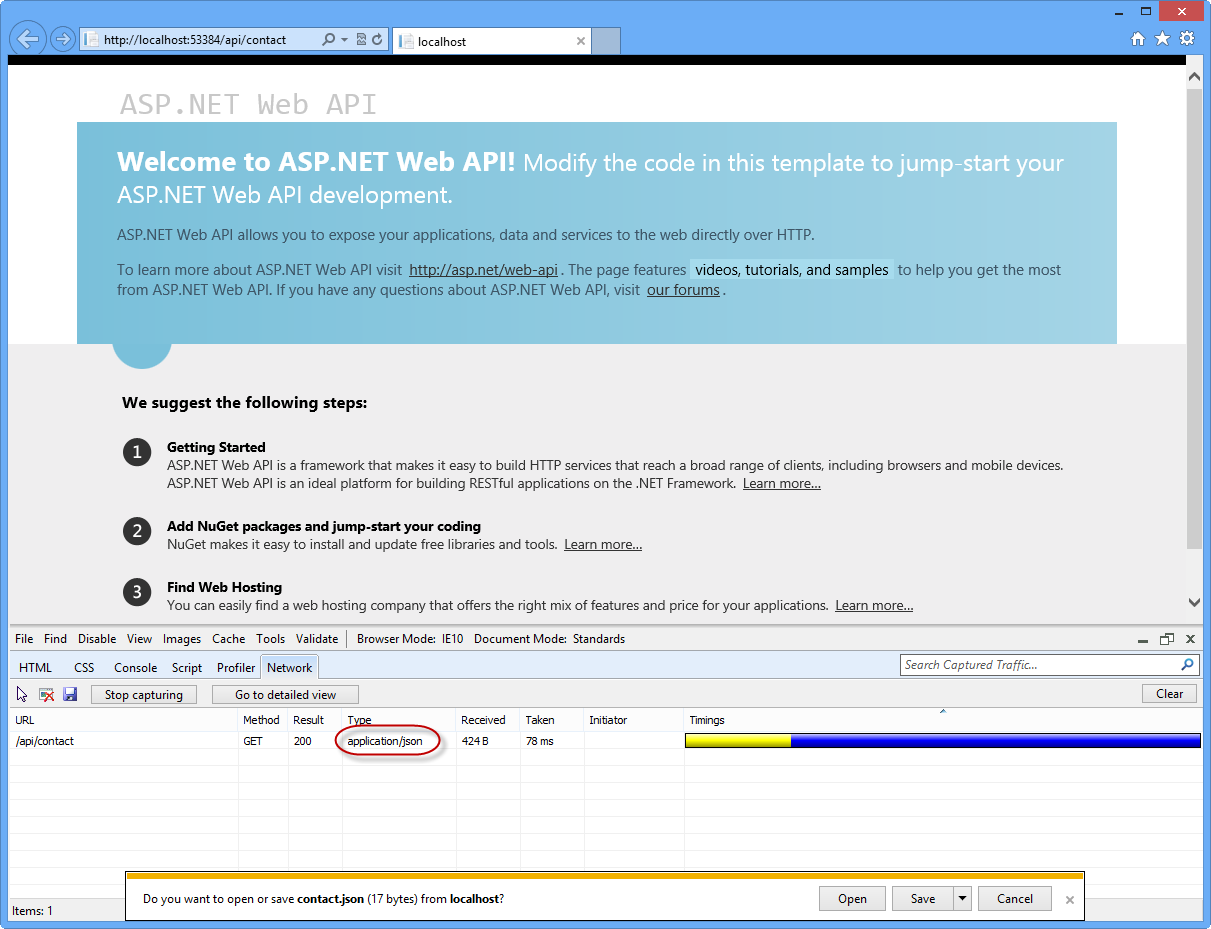
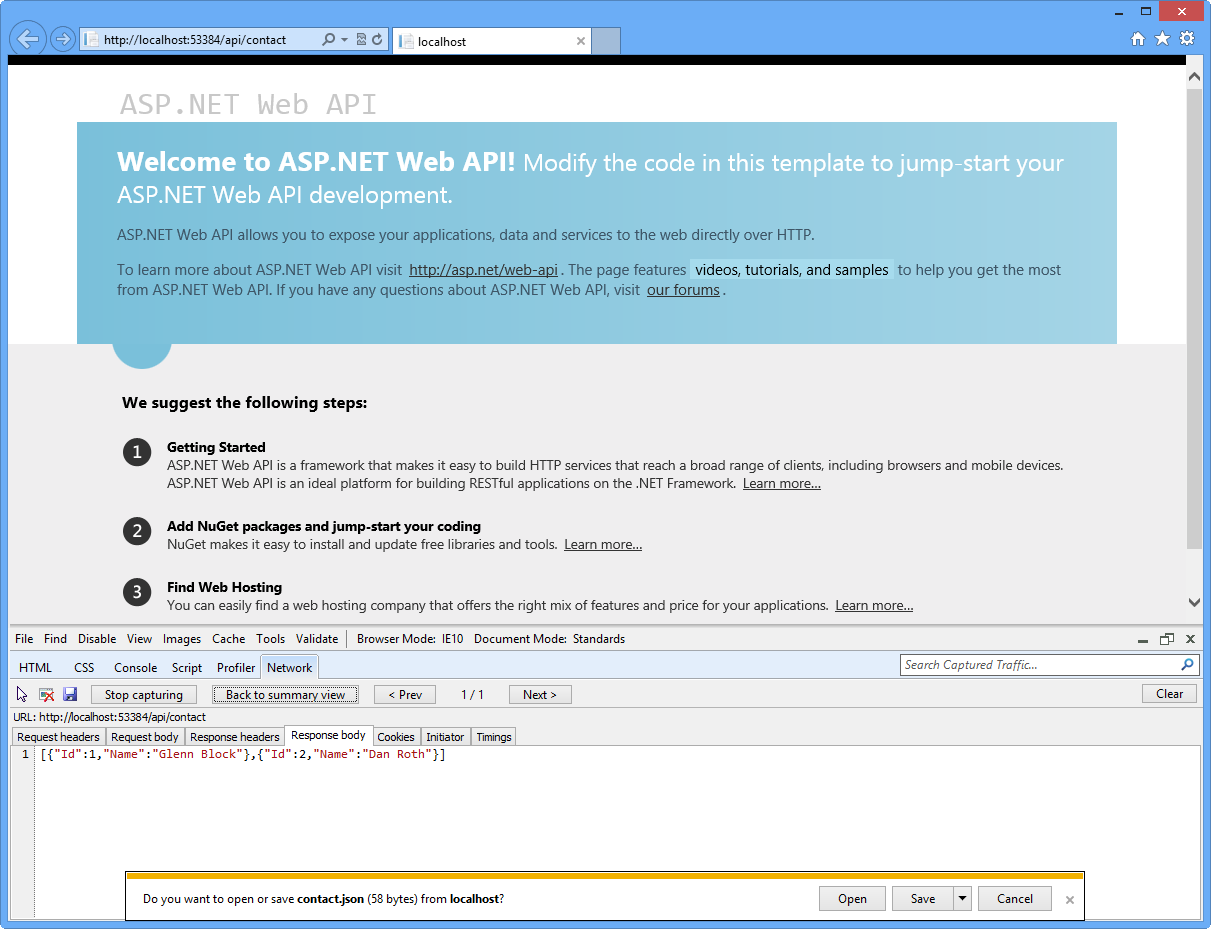
  7. Append the URL in the browser’s address bar with /api/contact and press enter. The transmission details will appear in the network capture window. Note that the response’s MIME type is application/json. This demonstrates how the default output format is JSON.
    Viewing the output of the Web API request in the Network view
    Viewing the output of the Web API request in the Network view
    Note
    Internet Explorer 10’s default behavior at this point will be to ask if the user would like to save or open the stream resulting from the Web API call. The output will be a text file containing the JSON result of the Web API URL call. Do not cancel the dialog in order to be able to watch the response’s content through Developers Tool window.
  8. Click the Go to detailed view button to see more details about the response of this API call.
    Switch to Detailed View
    Switch to Detailed View
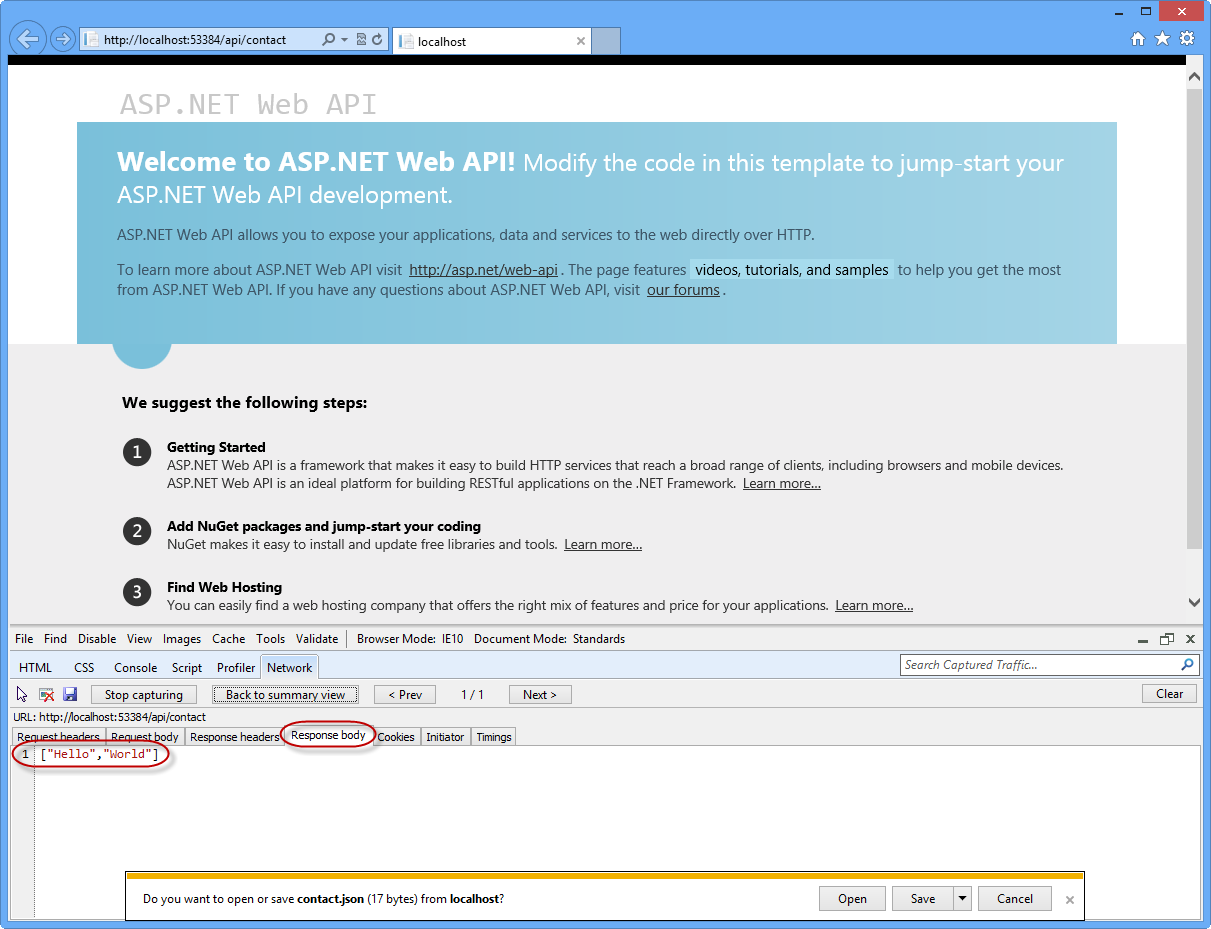
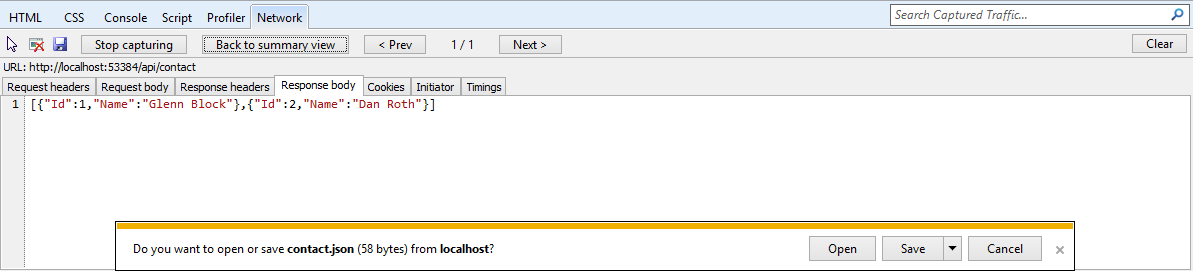
  9. Click the Response body tab to view the actual JSON response text.
    Viewing the JSON output text in the network monitor
    Viewing the JSON output text in the network monitor

Task 3 – Creating the Contact Models and Augment the Contact Controller

In this task, you will create the controller classes in which API methods will reside.
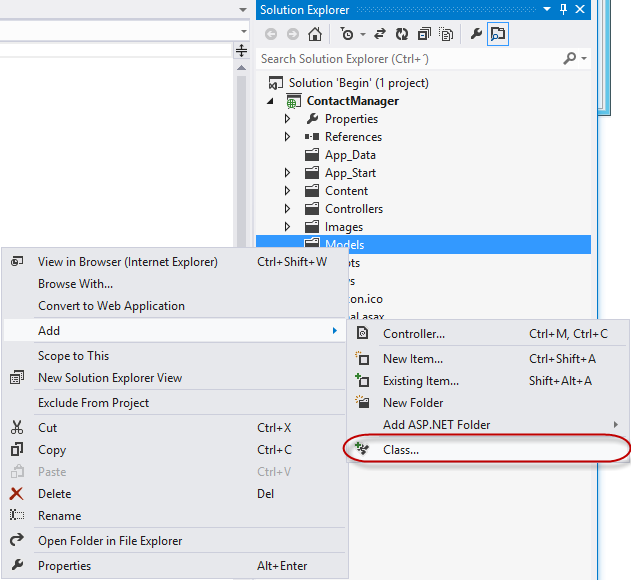
  1. Right-click the Models folder and select Add | Class… from the context menu.
    Adding a new model to the web application
    Adding a new model to the web application
  2. In the Add New Item dialog, name the new file Contact.cs and click Add.
    Creating the new Contact class file
    Creating the new Contact class file
  3. Add the following highlighted code to the Contact class.
    (Code Snippet – Web API Lab – Ex01 – Contact Class)
    C#Copy
    public class Contact
    {
    public int Id { get; set; }

    public string Name { get; set; }
    }
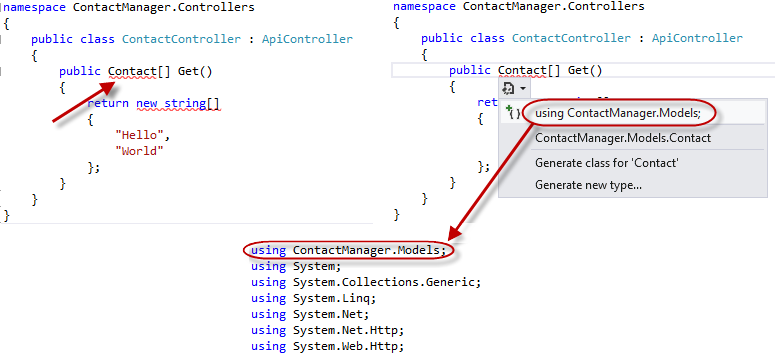
  4. In the ContactController class, select the word string in method definition of the Getmethod, and type the word Contact. Once the word is typed in, an indicator will appear at the beginning of the word Contact. Either hold down the Ctrl key and press the period (.) key or click the icon using your mouse to open up the assistance dialog in the code editor, to automatically fill in the using directive for the Models namespace.
    Using Intellisense assistance for namespace declarations
    Using Intellisense assistance for namespace declarations
  5. Modify the code for the Get method so that it returns an array of Contact model instances.
    (Code Snippet – Web API Lab – Ex01 – Returning a list of contacts)
    C#Copy
    public Contact[] Get()
    {
    return new Contact[]
    {
    new Contact
    {
    Id = 1,
    Name = "Glenn Block"
    },
    new Contact
    {
    Id = 2,
    Name = "Dan Roth"
    }
    };
    }
  6. Press F5 to debug the web application in the browser. To view the changes made to the response output of the API, perform the following steps.
    1. Once the browser opens, press F12 if the developer tools are not open yet.
    2. Click the Network tab.
    3. Press the Start Capturing button.
    4. Add the URL suffix /api/contact to the URL in the address bar and press the Enterkey.
    5. Press the Go to detailed view button.
    6. Select the Response body tab. You should see a JSON string representing the serialized form of an array of Contact instances.
      JSON serialized output of a complex Web API method call
      JSON serialized output of a complex Web API method call

Task 4 – Extracting Functionality into a Service Layer

This task will demonstrate how to extract functionality into a Service layer to make it easy for developers to separate their service functionality from the controller layer, thereby allowing reusability of the services that actually do the work.
  1. Create a new folder in the solution root and name it Services. To do this, right-click ContactManager project, select Add | New Folder, name it Services.
    Creating Services folder
    Creating Services folder
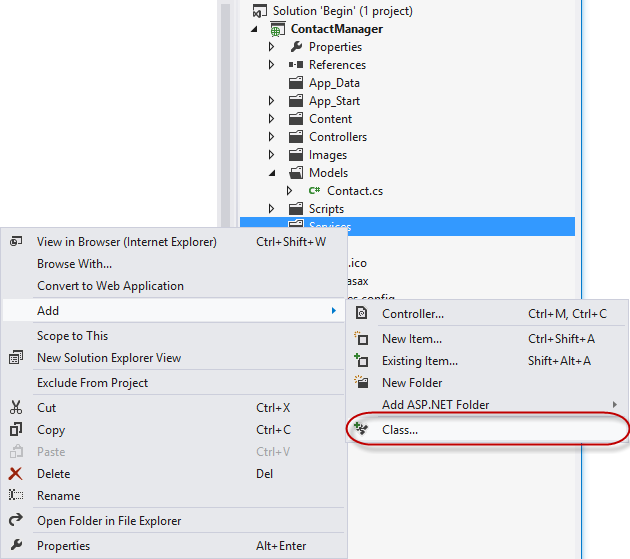
  2. Right-click the Services folder and select Add | Class… from the context menu.
    Adding a new class to the Services folder
    Adding a new class to the Services folder
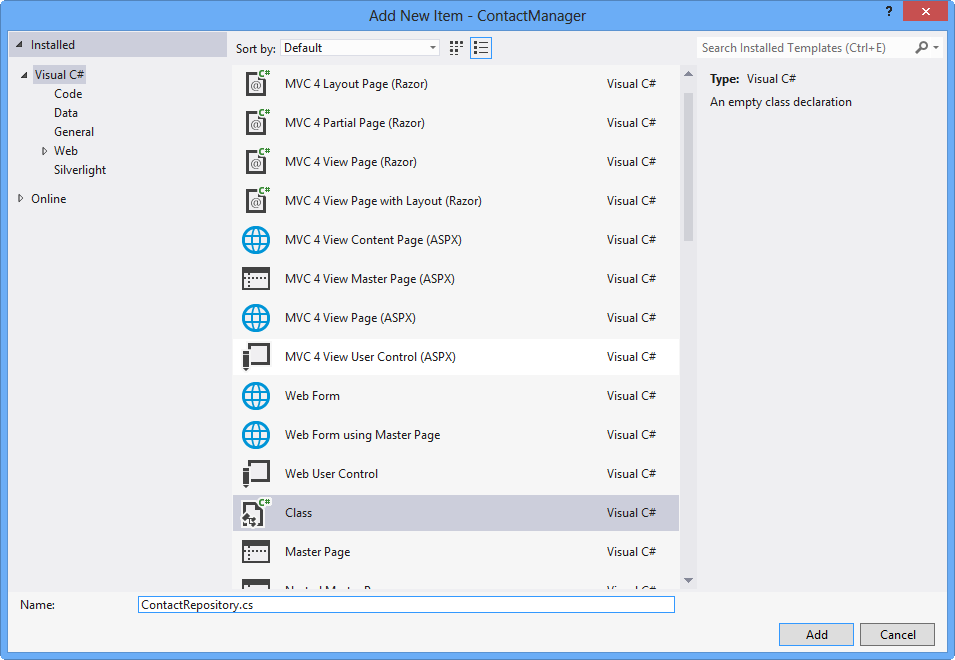
  3. When the Add New Item dialog appears, name the new class ContactRepository and click Add.
    Creating a class file to contain the code for the Contact Repository service layer
    Creating a class file to contain the code for the Contact Repository service layer
  4. Add a using directive to the ContactRepository.cs file to include the models namespace.
    C#Copy
    using ContactManager.Models;
  5. Add the following highlighted code to the ContactRepository.cs file to implement GetAllContacts method.
    (Code Snippet – Web API Lab – Ex01 – Contact Repository)
    C#Copy
    public class ContactRepository
    {
    public Contact[] GetAllContacts()
    {
    return new Contact[]
    {
    new Contact
    {
    Id = 1,
    Name = "Glenn Block"
    },
    new Contact
    {
    Id = 2,
    Name = "Dan Roth"
    }
    };
    }
    }
  6. Open the ContactController.cs file if it is not already open.
  7. Add the following using statement to the namespace declaration section of the file.
    C#Copy
    using ContactManager.Services;
  8. Add the following highlighted code to the ContactController.cs class to add a private field to represent the instance of the repository, so that the rest of the class members can make use of the service implementation.
    (Code Snippet – Web API Lab – Ex01 – Contact Controller)
    C#Copy
    public class ContactController : ApiController
    {
    private ContactRepository contactRepository;

    public ContactController()
    {
    this.contactRepository = new ContactRepository();
    }
    ...
    }
  9. Change the Get method so that it makes use of the contact repository service.
    (Code Snippet – Web API Lab – Ex01 – Returning a list of contacts via the repository)
    C#Copy
    public Contact[] Get()
    {
    return contactRepository.GetAllContacts();
    }
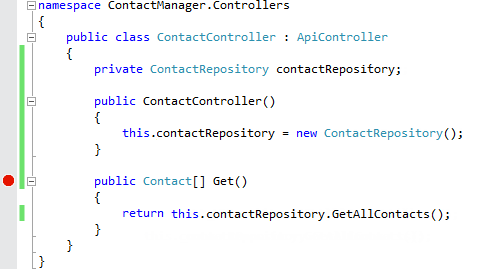
  10. Put a breakpoint on the ContactController‘s Get method definition.
Adding breakpoints to the contact controller
Adding breakpoints to the contact controller 11. Press F5 to run the application. 12. When the browser opens, press F12 to open the developer tools. 13. Click the Network tab. 14. Click the Start Capturing button. 15. Append the URL in the address bar with the suffix /api/contactand press Enter to load the API controller. 16. Visual Studio 2012 should break once Getmethod begins execution.
Breaking within the Get method
Breaking within the Get method 17. Press F5 to continue. 18. Go back to Internet Explorer if it is not already in focus. Note the network capture window.
Copy
![Network view in Internet Explorer showing results of the Web API call](build-restful-apis-with-aspnet-web-api/_static/image19.png "Network view in Internet Explorer showing results of the Web API call")

*Network view in Internet Explorer showing results of the Web API call*
  1. Click the Go to detailed view button.
  2. Click the Response body tab. Note the JSON output of the API call, and how it represents the two contacts retrieved by the service layer.
    Viewing the JSON output from the Web API in the developer tools window
    Viewing the JSON output from the Web API in the developer tools window

Exercise 2: Create a Read/Write Web API

In this exercise, you will implement POST and PUT methods for the contact manager to enable it with data-editing features.

Task 1 – Opening the Web API Project

In this task, you will prepare to enhance the Web API project created in Exercise 1 so that it can accept user input.
  1. Run Visual Studio 2012 Express for Web, to do this go to Start and type VS Express for Web then press Enter.
  2. Open the Begin solution located at Source/Ex02-ReadWriteWebAPI/Begin/ folder. Otherwise, you might continue using the End solution obtained by completing the previous exercise.
    1. If you opened the provided Begin solution, you will need to download some missing NuGet packages before continue. To do this, click the Project menu and select Manage NuGet Packages.
    2. In the Manage NuGet Packages dialog, click Restore in order to download missing packages.
    3. Finally, build the solution by clicking Build | Build Solution.
      Note
      One of the advantages of using NuGet is that you don’t have to ship all the libraries in your project, reducing the project size. With NuGet Power Tools, by specifying the package versions in the Packages.config file, you will be able to download all the required libraries the first time you run the project. This is why you will have to run these steps after you open an existing solution from this lab.
  3. Open the Services/ContactRepository.cs file.

Task 2 – Adding Data-Persistence Features to the Contact Repository Implementation

In this task, you will augment the ContactRepository class of the Web API project created in Exercise 1 so that it can persist and accept user input and new Contact instances.
  1. Add the following constant to the ContactRepository class to represent the name of the web server cache item key name later in this exercise.
    C#Copy
    private const string CacheKey = "ContactStore";
  2. Add a constructor to the ContactRepository containing the following code.
    (Code Snippet – Web API Lab – Ex02 – Contact Repository Constructor)
    C#Copy
    public ContactRepository()
    {
    var ctx = HttpContext.Current;

    if (ctx != null)
    {
    if (ctx.Cache[CacheKey] == null)
    {
    var contacts = new Contact[]
    {
    new Contact
    {
    Id = 1, Name = "Glenn Block"
    },
    new Contact
    {
    Id = 2, Name = "Dan Roth"
    }
    };

    ctx.Cache[CacheKey] = contacts;
    }
    }
    }
  3. Modify the code for the GetAllContacts method as demonstrated below.
    (Code Snippet – Web API Lab – Ex02 – Get All Contacts)
    C#Copy
    public Contact[] GetAllContacts()
    {
    var ctx = HttpContext.Current;

    if (ctx != null)
    {
    return (Contact[])ctx.Cache[CacheKey];
    }

    return new Contact[]
    {
    new Contact
    {
    Id = 0,
    Name = "Placeholder"
    }
    };
    }
    Note
    This example is for demonstration purposes and will use the web server’s cache as a storage medium, so that the values will be available to multiple clients simultaneously, rather than use a Session storage mechanism or a Request storage lifetime. One could use Entity Framework, XML storage, or any other variety in place of the web server cache.
  4. Implement a new method named SaveContact to the ContactRepository class to do the work of saving a contact. The SaveContact method should take a single Contactparameter and return a Boolean value indicating success or failure.
    (Code Snippet – Web API Lab – Ex02 – Implementing the SaveContact Method)
    C#Copy
    public bool SaveContact(Contact contact)
    {
    var ctx = HttpContext.Current;

    if (ctx != null)
    {
    try
    {
    var currentData = ((Contact[])ctx.Cache[CacheKey]).ToList();
    currentData.Add(contact);
    ctx.Cache[CacheKey] = currentData.ToArray();

    return true;
    }
    catch (Exception ex)
    {
    Console.WriteLine(ex.ToString());
    return false;
    }
    }

    return false;
    }

Exercise 3: Consume the Web API from an HTML Client

In this exercise, you will create an HTML client to call the Web API. This client will facilitate data exchange with the Web API using JavaScript and will display the results in a web browser using HTML markup.

Task 1 – Modifying the Index View to Provide a GUI for Displaying Contacts

In this task, you will modify the default Index view of the web application to support the requirement of displaying the list of existing contacts in an HTML browser.
  1. Open Visual Studio 2012 Express for Web if it is not already open.
  2. Open the Begin solution located at Source/Ex03-ConsumingWebAPI/Begin/ folder. Otherwise, you might continue using the End solution obtained by completing the previous exercise.
    1. If you opened the provided Begin solution, you will need to download some missing NuGet packages before continue. To do this, click the Project menu and select Manage NuGet Packages.
    2. In the Manage NuGet Packages dialog, click Restore in order to download missing packages.
    3. Finally, build the solution by clicking Build | Build Solution.
      Note
      One of the advantages of using NuGet is that you don’t have to ship all the libraries in your project, reducing the project size. With NuGet Power Tools, by specifying the package versions in the Packages.config file, you will be able to download all the required libraries the first time you run the project. This is why you will have to run these steps after you open an existing solution from this lab.
  3. Open the Index.cshtml file located at Views/Home folder.
  4. Replace the HTML code within the div element with id body so that it looks like the following code.
    HTMLCopy
    <div id="body">
    <ul id="contacts"></ul>
    </div>
  5. Add the following Javascript code at the bottom of the file to perform the HTTP request to the Web API.
    CSHTMLCopy
    @section scripts{
    <script type="text/javascript">
    $(function()
    {
    $.getJSON('/api/contact', function(contactsJsonPayload)
    {
    $(contactsJsonPayload).each(function(i, item)
    {
    $('#contacts').append('
  6. ' + item.Name + '
  7. ');
    });
    });
    });
    </script>
    }
  8. Open the ContactController.cs file if it is not already open.
  9. Place a breakpoint on the Get method of the ContactController class.
    Placing a breakpoint on the Get method of the API controller
    Placing a breakpoint on the Get method of the API controller
  10. Press F5 to run the project. The browser will load the HTML document.
    Note
    Ensure that you are browsing to the root URL of your application.
  11. Once the page loads and the JavaScript executes, the breakpoint will be hit and the code execution will pause in the controller.
    Debugging into the Web API calls using VS Express for Web
    Debugging into the Web API call using Visual Studio 2012 Express for Web
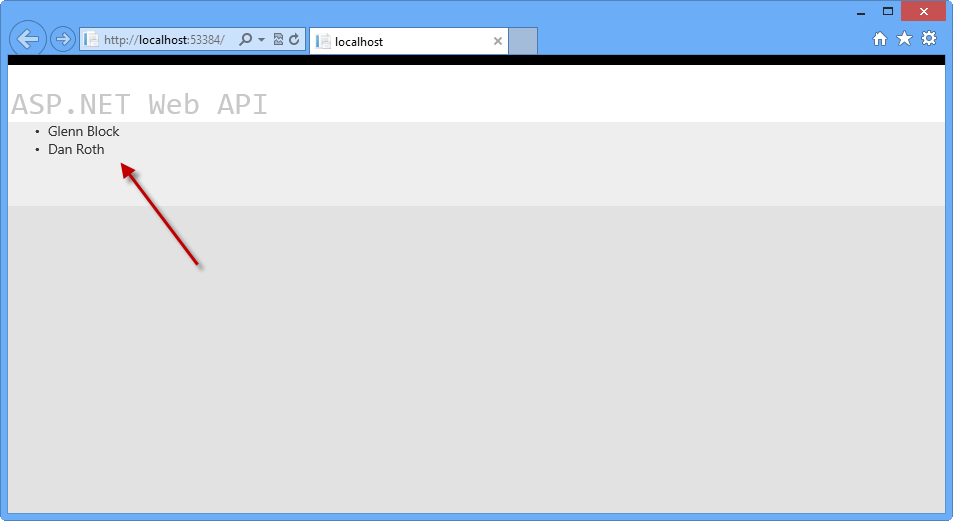
  12. Remove the breakpoint and press F5 or the debugging toolbar’s Continue button to continue loading the view in the browser. Once the Web API call completes you should see the contacts returned from the Web API call displayed as list items in the browser.
    Results of the API call displayed in the browser as list items
    Results of the API call displayed in the browser as list items
  13. Stop debugging.

Task 2 – Modifying the Index View to Provide a GUI for Creating Contacts

In this task, you will continue to modify the Index view of the MVC application. A form will be added to the HTML page that will capture user input and send it to the Web API to create a new Contact, and a new Web API controller method will be created to collect date from the GUI.
  1. Open the ContactController.cs file.
  2. Add a new method to the controller class named Post as shown in the following code.
    (Code Snippet – Web API Lab – Ex03 – Post Method)
    C#Copy
    public HttpResponseMessage Post(Contact contact)
    {
    this.contactRepository.SaveContact(contact);

    var response = Request.CreateResponse(System.Net.HttpStatusCode.Created, contact);

    return response;
    }
  3. Open the Index.cshtml file in Visual Studio if it is not already open.
  4. Add the HTML code below to the file just after the unordered list you added in the previous task.
    HTMLCopy
    <form id="saveContactForm" method="post">
    <h3>Create a new Contact</h3>
    <p>
    <label for="contactId">Contact Id:</label>
    <input type="text" name="Id" />
    </p>
    <p>
    <label for="contactName">Contact Name:</label>
    <input type="text" name="Name" />
    </p>
    <input type="button" id="saveContact" value="Save" />
    </form>
  5. Within the script element at the bottom of the document, add the following highlighted code to handle button-click events, which will post the data to the Web API using an HTTP POST call.
    HTMLCopy
    <script type="text/javascript">
    ...
    $('#saveContact').click(function()
    {
    $.post("api/contact",
    $("#saveContactForm").serialize(),
    function(value)
    {
    $('#contacts').append('
  6. ' + value.Name + '
  7. '
    );
    },
    "json"
    );
    });
    </script>
  8. In ContactController.cs, place a breakpoint on the Post method.
  9. Press F5 to run the application in the browser.
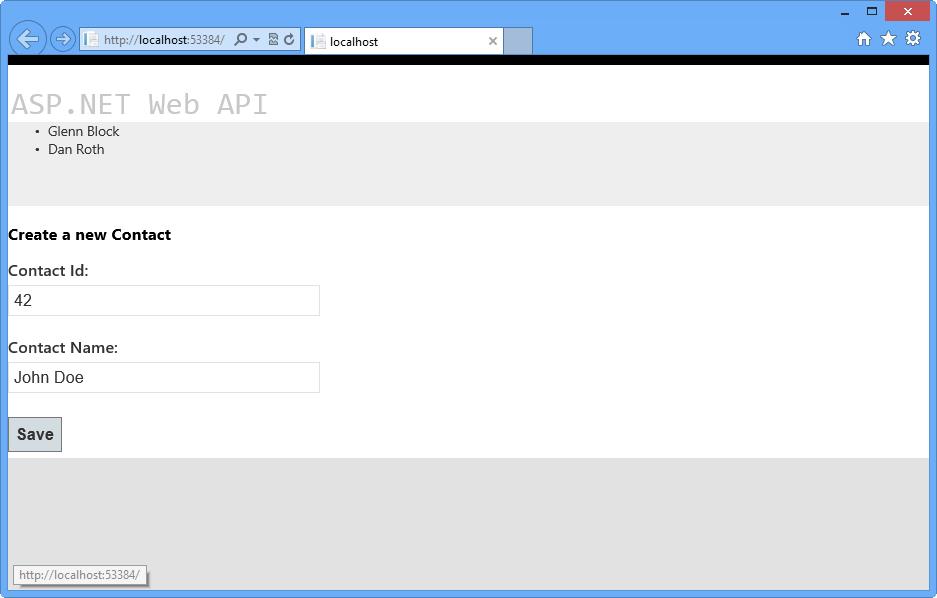
  10. Once the page is loaded in the browser, type in a new contact name and Id and click the Save button.
    The client HTML document loaded in the browser
    The client HTML document loaded in the browser
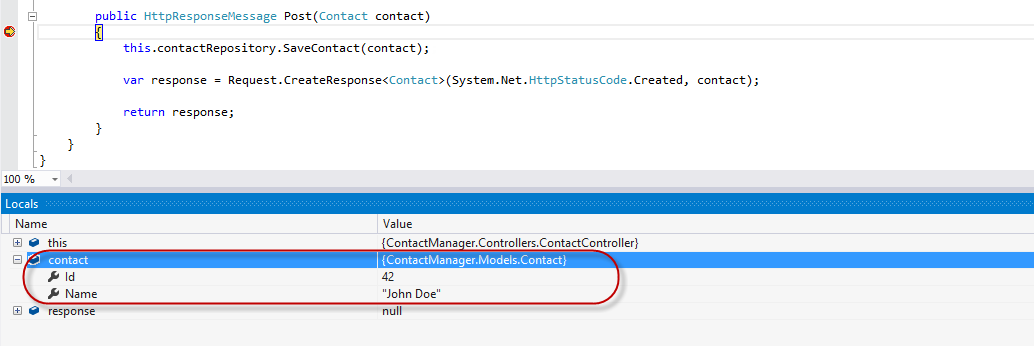
  11. When the debugger window breaks in the Post method, take a look at the properties of the contact parameter. The values should match the data you entered in the form.
    The Contact object being sent to the Web API from the client
    The Contact object being sent to the Web API from the client
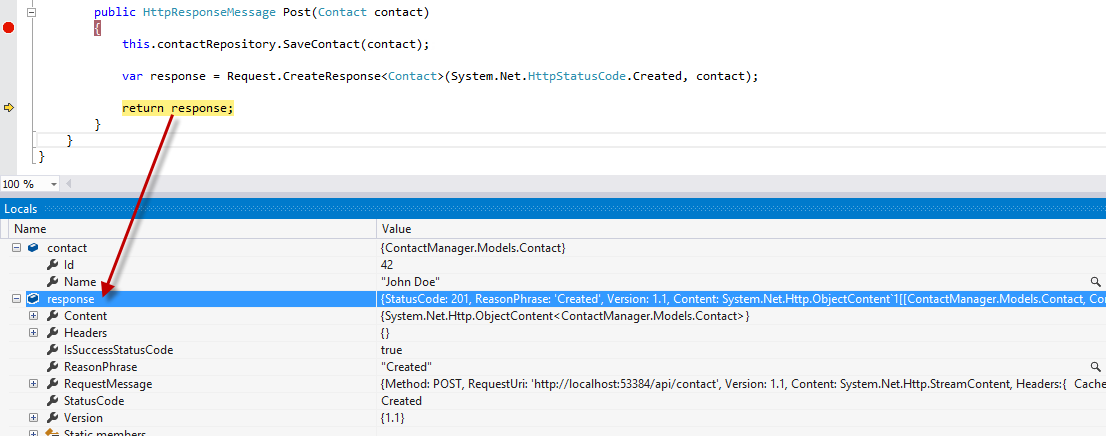
  12. Step through the method in the debugger until the response variable has been created. Upon inspection in the Locals window in the debugger, you’ll see that all the properties have been set.
The response following creation in the debugger
The response following creation in the debugger 11. If you press F5 or click Continue in the debugger the request will complete. Once you switch back to the browser, the new contact has been added to the list of contacts stored by the ContactRepository implementation.
The browser reflects successful creation of the new contact instance
Note
Additionally, you can deploy this application to Azure following Appendix C: Publishing an ASP.NET MVC 4 Application using Web Deploy.

Summary

This lab has introduced you to the new ASP.NET Web API framework and to the implementation of RESTful Web APIs using the framework. From here, you could create a new repository that facilitates data persistence using any number of mechanisms and wire that service up rather than the simple one provided as an example in this lab. Web API supports a number of additional features, such as enabling communication from non-HTML clients written in any language that supports HTTP and JSON or XML. The ability to host a Web API outside of a typical web application is also possible, as well as is the ability to create your own serialization formats.
The ASP.NET Web site has an area dedicated to the ASP.NET Web API framework at [https://asp.net/web-api](https://asp.net/web-api). This site will continue to provide late-breaking information, samples, and news related to Web API, so check it frequently if you’d like to delve deeper into the art of creating custom Web APIs available to virtually any device or development framework.

Install the Google Publisher Toolbar

(adsbygoogle = window.adsbygoogle || []).push({ google_ad_client: “ca-pub-9111247652808147”, enable_page_level_ads: true });

 Google Publisher Toolbar

 To use the Google Publisher Toolbar you’ll need to install it and allow it access to the Google Account associated with your account.
  1. Browse to the Google Publisher Toolbar (by Google) page.
  2. Click Add to Chrome.
  3. In the dialog that appears, click Add Extension. The Google Publisher Toolbar icon Google Publisher Toolbar icon that looks like a white line graph against a blue background. is added to the top right of your browser.
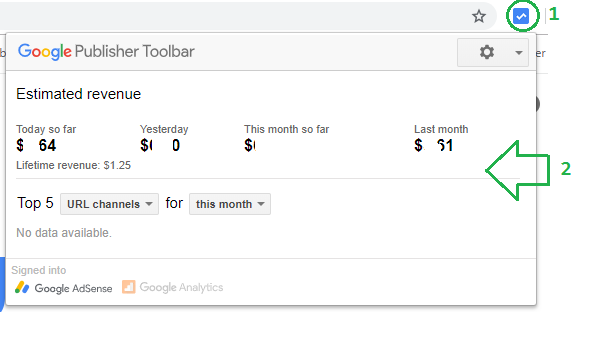
  4. Click the Google Publisher Toolbar icon.
  5. Click Allow to grant the Google Publisher Toolbar access to your account.
  6. Sign in to the Google Account associated with your account.
From your Chrome window, click the icon in the top right of your browser to view account performance.

What is Wix Toolset for Developers?

WIX TOOLSET

THE MOST POWERFUL SET OF TOOLS AVAILABLE TO CREATE YOUR WINDOWS INStALLATION EXPERIENCE.

WiX toolset lets developers create installers for Windows Installer, the Windows installation engine.

The core of WiX is a set of build tools that build Windows Installer packages using the same build concepts as the rest of your product: source code is compiled and then linked to create executables; in this case .exe setup bundles, .msi installation packages, .msm merge modules, and .msp patches. The WiX command-line build tools work with any automated build system. Also, MSBuild is supported from the command line, Visual Studio, and Team Build.

WiX includes several extensions that offer functionality beyond that of Windows Installer. For example, WiX can install IIS web sites, create SQL Server databases, and register exceptions in the Windows Firewall, among others.

With Burn, the WiX bootstrapper, you can create setup bundles that install prerequisites like the .NET Framework and other runtimes along with your own product. Burn lets you download packages or combine them into a single downloadable .exe.

The WiX SDK includes managed and native libraries that make it easier to write code that works with Windows Installer, including custom actions in both C# and C++.


————————————————–

Reference

http://wixtoolset.org/releases/
————————————————–

1. Close the Visual Studio program in case opened
2. Install wix311.exe  first
3. If you are using Visual Studio 2017
Install Votive2017.vsix extension for Visual studio 2017
4. If you are using Visual Studio 2015
Install Votive2015.vsix extension for Visual studio 2015

Download Links

Install Wix : http://wixtoolset.org/releases/
Visual Studio 2017 Extension : https://marketplace.visualstudio.com/items?itemName=RobMensching.WixToolsetVisualStudio2017Extension

Visual Studio 2015 Extension https://marketplace.visualstudio.com/items?itemName=RobMensching.WixToolsetVisualStudio2015Extension

Improving your productivity in the Visual Studio Editor

Over the last few updates to Visual Studio 2017, we’ve been hard at work adding new features to boost your productivity while you’re writing code. Many of these are the result of your direct feedback coming from the UserVoice requests, Developer Community tickets, and direct feedback we’ve encountered while talking to developers like you.
We are so excited to share these features with you and look forward to your feedback!

Multi-Caret Support

One of our top UserVoice items asked for the ability to create multiple insertion and selection points, often shortened to be called multi-caret or multi-cursor support. Visual Studio Code users told us they missed this feature when working in Visual Studio. We heard you opened single files in Visual Studio Code to leverage this feature or installed extensions such as MixEdit, but in Visual Studio 2017 Version 15.8, you won’t need to do this anymore. We’ve added native support for some of the top requested features in the multi-caret family and we’re just getting started.
There are three main features we’d like to highlight. First, you can add multiple insertion points or carets. With Ctrl + Alt + Click, you can add additional carets to your document, which allows you to add or delete text in multiple places at once.
GIF showing how to add carets in multiple locations
Second, with Shift + Alt + . you can add additional selections that match your current selection. We think of this as an alternative to find and replace, as it allows you to add your matching selections one by one while also verifying the context of each additional selection. If you’d like to skip over a match, use (Ctrl + Shift + Alt + .) to move the last matching selection to the next instance.
Lastly, you can also grab all matching selections in a document at once (Ctrl + Alt + Shift + ,) providing a scoped find and replace all.

Quick Commands

Just like papercuts, smaller missing commands hurt when you add them up! We heard your pain, so in the past few releases, we’ve tried to address some of the top features you’ve asked for.

Duplicate line

The reduction of even a single keystroke adds up when multiplied across our userbase and one place we saw an opportunity to optimize your workflow was in duplicating code. The classic Copy + Paste worked in many cases, but we also heard in feedback that you wanted a way to duplicate a selection without affecting your clipboard. One scenario where this often popped up was when you wanted to clone a method and rename it by pasting a name you had previously copied.
To solve this issue, we introduced Duplicate Code (Ctrl + D) in Visual Studio 2017 version 15.6 which streamlines the process of duplicating your code while leaving your clipboard untouched. If nothing is selected, Ctrl + D will duplicate the line the cursor is in and insert it right below the line in focus. If you’d like to duplicate a specific set of code, simply select the portion of code you want to duplicate before invoking the duplicate code command.

Expand/Contract Selection

How do you quickly select a code block? In the past, you could incrementally add to your selection word by word or perhaps you used a series of Shift plus arrow keystrokes. Maybe you took that extra second to lift you hand off the keyboard so you could use a mouse instead. Whatever the way, you wanted something better. In Visual Studio 2017 version 15.5, we introduced expand /contract selection which allows you to grow your selection to the next logical code block (Shift + Alt + +) and decrease it by the same block if you happen to select too much ((Shift + Alt + ).
gif showing expand /contract selection which allows you to grow your selection to the next logical code block and decrease it by the same block

Moving between issues in your document

You’ve been able to navigate to Next Error via Ctrl + Shift + F12 but we heard this experience was sometimes jarring as Next Error might jump you all around a solution as it progressed through issues in the order they appeared in the Error List. With Next/Previous Issue (Alt PgUp/PgDn) you can navigate to the next issue (error, warning, suggestion) in the current document. This allows you to move between issues in sequential versus severity order and gives you more progressive context as you’re moving through your issues.

Go To All – Recent Files and File Member search

You can now view and prioritize search results from recent files. When you turn on the recent files filter, the Go To All results will show you a list of files opened during that session and then prioritizes results from recent files for your search term.
Additionally, Go To Member is now scoped to the current file by default. You can toggle this default scope back to solution level by turning off Scope to Current Document (Ctrl + Alt + C).

Go To Last Edited Location

We all know the feeling of starting to write a feature and then realizing we need some more information from elsewhere in the solution. So, we open another file from Solution Explorer or Go to Definition in a few places and suddenly, we’re far off from where we started with no easy way back unless you remember the name of file you were working in originally. In Visual Studio 2017 version 15.8, you can now go back to your last edited location via Edit > Go To Go To Last Edit Location (Ctrl + Shift + Backspace).
Expanded Navigation Context Menu

Keyboard profiles for Visual Studio Code and ReSharper

Learning keyboard shortcuts takes time and builds up specific muscle memory so that once you learn one set, it can be difficult to retrain yourself when the shortcuts change or create mappings that match your previous shortcuts. This problem came to light as we heard from users who frequently switch between Visual Studio and Visual Studio Code, and those who used ReSharper in the past. To help, we’ve added two new keyboard profiles, Visual Studio Code and ReSharper (Visual Studio), which we hope will increase your productivity in Visual Studio.
Keyboard profiles for Visual Studio Code and ReSharper

C# Code Clean-up

Last, but certainly not least, in Visual Studio 2017 version 15.8, we’ve configured Format Document to perform additional code cleanup on a file–like remove and sort usings or apply code style preferences. Code cleanup will respect settings configured in an .editorconfig file, or lacking that rule or file, those set in Tools > Options > Text Editor > C# > [Code Style & Formatting]. Rules configured as none in an .editorconfig will not participate in code cleanup and will have to be individually fixed via the Quick Actions and Refactorings menu.
Options dialog showing format document options for C# Code Clean-up

Effective Decision-Making

In its simplest sense, decision-making is the act of choosing between two or more courses of action.
In the wider process of problem-solving, decision-making involves choosing between possible solutions to a problem. Decisions can be made through either an intuitive or reasoned process, or a combination of the two.

Intuition

Intuition is using your ‘gut feeling’ about possible courses of action.
Although people talk about it as if it was a magical ‘sense’, intuition is actually a combination of past experience and your personal values. It is worth taking your intuition into account, because it reflects your learning about life. It is, however, not always based on reality, only your perceptions, many of which may have started in childhood and may not be very mature as a result.
It is therefore worth examining your gut feeling closely, especially if you have a very strong feeling against a particular course of action, to see if you can work out why, and whether the feeling is justified.

Reasoning

Reasoning is using the facts and figures in front of you to make decisions.
Reasoning has its roots in the here-and-now, and in facts. It can, however, ignore emotional aspects to the decision, and in particular, issues from the past that may affect the way that the decision is implemented.
Intuition is a perfectly acceptable means of making a decision, although it is generally more appropriate when the decision is of a simple nature or needs to be made quickly.
More complicated decisions tend to require a more formal, structured approach, usually involving both intuition and reasoning. It is important to be wary of impulsive reactions to a situation.

Effective Decision-Making

Decisions need to be capable of being implemented, whether on a personal or organisational level. You do, therefore, need to be committed to the decision personally, and be able to persuade others of its merits.
An effective decision-making process, therefore, needs to ensure that you are able to do so.

What Can Prevent Effective Decision-Making?

There are a number of problems that can prevent effective decision-making. These include:

1. Not Enough Information

If you do not have enough information, it can feel like you are making a decision without any basis.
Take some time to gather the necessary data to inform your decision, even if the timescale is very tight. If necessary, prioritise your information-gathering by identifying which information will be most important to you.

2. Too Much Information

The opposite problem, but one that is seen surprisingly often: having so much conflicting information that it is impossible to see ‘the wood for the trees’.
This is sometimes called analysis paralysis, and is also used as a tactic to delay organisational decision-making, with those involved demanding ever more information before they can decide.
This problem can often be resolved by getting everyone together to decide what information is really important and why, and by setting a clear timescale for decision-making, including an information-gathering stage.

3. Too Many People

Making decisions by committee is difficult. Everyone has their own views, and their own values. And while it’s important to know what these views are, and why and how they are important, it may be essential for one person to take responsibility for making a decision. Sometimes, any decision is better than none.

4. Vested Interests

Decision-making processes often founder under the weight of vested interests. These vested interests are often not overtly expressed, but may be a crucial blockage. Because they are not overtly expressed, it is hard to identify them clearly, and therefore address them, but it can sometimes be possible to do so by exploring them with someone outside the process, but in a similar position.
It can also help to explore the rational/intuitive aspects with all stakeholders, usually with an external facilitator to support the process.

5. Emotional Attachments

People are often very attached to the status quo. Decisions tend to involve the prospect of change, which many people find difficult.
For more about overcoming this, see our pages on Change Management, but also remember that ‘deciding not to decide’ is also a decision.

6. No Emotional Attachment

Sometimes it’s difficult to make a decision because you just don’t care one way or the other. In this case, a structured decision-making process can often help by identifying some very real pros and cons of particular actions, that perhaps you hadn’t thought about before.
Many of these issues can be overcome by using a structured decision-making process. This will help to:
  • Reduce more complicated decisions down to simpler steps;
  • See how any decisions are arrived at; and
  • Plan decision making to meet deadlines.
Many different techniques of decision making have been developed, ranging from simple rules of thumb, to extremely complex procedures.  The method used depends on the nature of the decision to be made and how complex it is.

Design a site like this with WordPress.com
Get started