What is Xamarin.iOS?


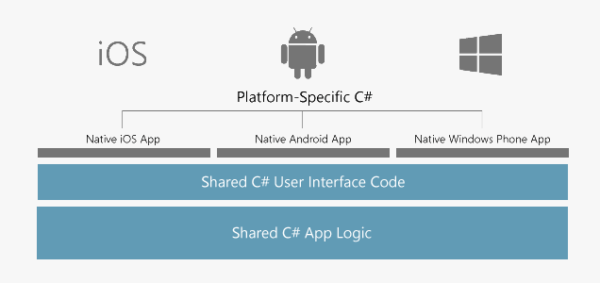
Visual Studio Tools for Xamarin is an open-source app development platform. It lets you build apps for many operating systems from a single, shared .NET code base. Xamarin allows you to write apps that can take full advantage of the power, features, and performance of each platform. Xamarin.iOS is one of the Xamarin frameworks that you use to create fully native iOS apps using C# in Visual Studio.
An illustration showing Xamarin targets all platforms

What is a Xamarin.iOS app?

A Xamarin.iOS app is a native iOS app that you build with Xamarin tools and libraries. Xamarin’s controls are wrappers around the native iOS views. Because the app uses the native iOS views at runtime, your UI has the native look-and-feel that users expect. You use C# to write the behavior logic for a Xamarin.iOS app. C# is comfortable and familiar to the community of .NET developers.

What is included in the Xamarin.iOS framework?

The Xamarin.iOS framework includes the complete iOS SDK APIs. This API access means that anything you can do in Swift or Objective-C for iOS, you can do in C# with Xamarin.iOS. The Xamarin.iOS framework also includes both compile-time and runtime components that form part of a customized version of Mono built for iOS.

What is Mono?

Mono is an open-source implementation of Microsoft’s .NET Framework. Xamarin.iOS uses many of the Mono tools and libraries. Mono has the core pieces that are used to build and manage your Xamarin.iOS apps.
Two Mono components handle the Xamarin.iOS compile-time aspects of your app:
  • C# Compiler: This compiler creates the initial Microsoft Intermediate Language (MSIL) that’s used to execute your app on the iOS simulator.
  • Native compiler and linker: Xamarin.iOS has an Ahead-of-Time (AOT) compiler to compile your managed code to a native iOS binary. When apps run on a device, AOT-compiled binary code performs like native-compiled binary code. The linker optimizes apps by stripping out unused libraries and code.
Two Mono components handle the Xamarin.iOS runtime and execution of your app:
  • Mono Base Class Library (BCL): The BCL is the same as the .NET Framework Class Library that contains all of the familiar utility classes. Xamarin.iOS contains a subset of the .NET Framework Class Libraries with features like LINQ, Tasks, XML, Regex, I/O, and networking APIs.
  • Mono runtime: The Mono runtime is what executes MSIL. It’s customized for Xamarin.iOS and runs side by side with the Objective-C runtime. The Mono runtime provides several features to your app, such as: type checking, static reflection, interoperability, and Garbage Collection services to your app.
 Note
You’re not limited to the Xamarin.iOS .NET Framework Class Libraries. Xamarin.iOS also supports .NET Standard libraries if you need a wider range of .NET APIs.

What are the hardware and software requirements for Xamarin.iOS development?

Apple has strict requirements when it comes to building apps. For example, you need to use a Mac and run Xcode to create your apps. Xcode is the integrated development environment (IDE) for macOS that is developed and maintained by Apple. Xcode includes a suite of apps used for developing software for macOS, iOS, watchOS, and tvOS. You build and distribute your apps with tools that come with the Xcode IDE.
Xamarin.iOS also uses the Xcode tools to create the final binary and distribution packages for iOS apps. This requirement means you need a Mac that runs macOS and Xcode to complete the final compilation and deployment of a Xamarin.iOS app. Before you distribute your app, you also need to deploy your app to an iOS device for testing.
 Note
From time to time, Apple requires you to upgrade to the latest versions of all operating systems as well as the native development environment. You also need to update the Xamarin tools to match. You should keep Xcode up-to-date and use the latest Xamarin stable releases. See the Xamarin installation instructions.

Write code for Xamarin.iOS apps

Even though iOS app creation is dependent on the Xcode tools, you don’t write Xamarin.iOS apps in the Xcode IDE. You have two IDE choices for writing a Xamarin.iOS app.
  • Windows: Visual Studio supports Xamarin.iOS. You can even use the free Community edition of Visual Studio. You also need a Mac with macOS, Xcode, and the Xamarin tools installed. Visual Studio uses the Mac as a build host to complete the final compilation and deployment of your app. Make sure to add the Mobile development with .NET workload when you install Visual Studio. This workload isn’t added by default on new installations of Visual Studio.
  • Mac: Visual Studio for Mac supports Xamarin.iOS. You can even use the free Community edition of Visual Studio for Mac. This IDA looks and behaves similarly to Visual Studio and provides a familiar development experience to .NET developers.
 Note
You don’t need an additional build host when you use Visual Studio for Mac because all compilation happens on the local machine.

You need to install the Visual Studio IDE?

Build and preview a basic web app

Build and preview a basic web app


In the last unit, we created a simple, auto-generated HTML file named index.html. Let’s pick up where we left off and make a web app we can run on a local server.

First test: Hello World

For a first test to see the minimal code we can run, we’ll add some content to display. When we left our new index.html file in the last unit, it looked like the following.
HTML added by Emmet.
Now edit this code to look like the following screen shot (pertinent content is highlighted with red outline).
Default HTML plus some new content.
Notice how the HTML IntelliSense and color coding extensions are working for you throughout. You might explore this more in future modules, but feel free to go ahead and experiment on your own. If you do, be sure to also try the auto-completion features.

Publish the web page locally

Now it’s time to run the HTML locally. Select the GoLive icon in the bottom right status bar.
GoLive icon.
This will tell the Live Server extension we installed earlier to start up and launch your default web browser to serve up the content in the current file. You should see Hello World Test Page in the browser’s title bar and Hello, World! in a large heading font.
Congratulations! You’ve just served up your first web page. Of course, this is content only you can see, because it’s being served by a locally running web server (the Live Server extension). You’ll notice the web address is the IP address reserved for the local machine. If you want this web page to be available online, you’d need to deploy it to a web server connected to the internet. This is beyond the scope of this lesson module, but you can learn about it in other modules in this series.

Create and auto-generate files in VS Code

Create and auto-generate files in VS Code


As with most of the Visual Studio Code (VS Code) functionality, there are many ways to create and manage files. In this unit, we’ll create and edit a file. We suggest creating a folder called intro-to-vscode on your local computer and work from there. Although you can think of this as your project folder for this module, VS Code won’t create any files other than the specific files needed for this lesson unless you create a Workspace, discussed at the end of this unit.

Using Explorer to manage files

The Explorer button, shown below, toggles the Explorer view in the sidebar on and off.
Explorer icon.
You should see the Open Folder button as shown here.
Open folder button.
Select this button and navigate to the intro-to-vscode folder you created previously.

Create an HTML file

In this case you probably don’t have any files yet, so the folder is empty. Let’s solve that now. Use the New File icon, shown below, to create a new file in the current folder. Note that this icon doesn’t show up unless you hover your mouse cursor over the portion of the Explorer where your folder name is listed.
New File icon.
Name the new file index.html and press Enter.

Using Emmet to create code

You should now have an empty file named index.html open in the editor and listed in the Explorer. If you start typing valid HTML, you’ll see color coding come in as you work. Instead of typing everything manually, we can use VS Code’s built-in Emmet support to do a lot of the tedious bits.
In your empty editor window index.html, type ! (exclamation point) then select the Tab key. This will tell Emmet to fill in the minimum HTML needed to make a web page using default values, as shown below.
HTML added by Emmet.
We’ve taken a direct line to creating the HTML here, skipping over optional features of Emmet. For example, when you type the exclamation point but before you type the Tab key, you’ll see something like the following.
Emmet info option
Note the little i in the blue circle off to the right, which you can click for more info. Also, be sure to take note of the location of the full Emmet reference at Emmet In Visual Studio Code. You don’t need to know all the details at this moment, but it’s useful to have a feel for the scope of Emmet and what it can do to make you more efficient.
Let’s head back to our new file we’re editing. Notice the changes to the UI after adding content.
Unsaved file indicators.
There’s a number 1 on the Explorer icon in the Activity Bar, which means there’s one file open that’s been changed but not saved. After that is a count of unsaved changes in the Explorer, next to the Open Editors header. Lastly, the file name in the list of open editors and the editor tab for the file itself each have a large dot.
All these various indicators are provided to notify you that you have unsaved changes, so you’ll know regardless of which parts of the UI you decide to hide or show.
Saving files manually is no different than usual, from the File menu or using keyboard shortcuts. VS Code also has a handy automatic file save feature you can enable, which is in the File menu. (Alternately, hit F1, start typing “auto save,” and select File: Toggle Auto Save).

Syntax highlighting from built-in extensions

Let’s look over the built-in extensions list. These are the extensions that come pre-installed on VS Code, and don’t show up in your usual installed extensions list. To view the built-in extensions, select the ellipsis icon (...) in the upper right of the Extensions area and choose Show Built-in Extensions. The length of this list may surprise you! Take a moment to scroll through the various items to get a feel for what’s already here.
 Note
There are syntax highlighting extensions for many languages such as HTML already built in. You may have noticed this particular extension at work in the previous section when you added HTML with Emmet.

Using a Workspace to organize your project

Although not required, you may opt to work within the Workspace construct if you’re working with multiple files at once. This is nothing more than a work environment that contains all the files and settings you want for a given project. If you create a new Workspace, you’ll need to name it and save it to the location of your choosing. We won’t discuss workspaces in detail here. If you want to know more, see Multi-root Workspaces in the Visual Studio Code Documentation.

Install and tour Visual Studio Code

Install and tour Visual Studio Code


To begin, let’s download and install VS Code locally, then take a short tour of the user interface (UI) and features. We recommend you perform these steps on your own installation, but you can read through the Tour section without following along if you prefer.

Download

Browse to https://code.visualstudio.com and select the stable build for your platform. The Insiders Edition is like using a beta test version of the next update, but is not applicable for this learning module. If you don’t see your specific platform, select Other downloads to see all currently supported builds.

Install

During installation, be sure to check out the options presented and select any opt-in features you’d like. These options are mostly for convenience and personal preference, so you can accept the defaults to simplify your installation. Below are the Windows options and their defaults.
Windows installation options.
Take a moment on first run to check for available updates. On Windows, this can be easily done using the Help pulldown menu and selecting Check for Updates. This option may appear in other pulldown menu locations on other platforms.

Tour

Let’s take a look at a few key features of the user interface, and a short tour of VS Code’s core functionality. When you first run VS Code, you should see a “Welcome” page similar to the screenshot below. If you don’t see the Welcome page, you can access it using the Help > Welcome dropdown menu item.
First run after installation.

User interface

The first thing you’ll probably notice is how simple the interface seems to be. This is intentional, but hides the true power of this editor. For now, familiarize yourself with the main UI components.
User interface components.
One UI function you are likely to find quite valuable is the Command Palette (F1 on any platform, Ctrl + Shift + P on Windows, and listed under the View dropdown menu). It’s a great starting place if you have an idea what you’d like to do in VS Code, but can’t recall exactly how to do it.
Command palette.
By default, the Command Palette comes up in Command mode, signified by the > prompt. This mode includes most VS Code functionality, including finding keyboard shortcuts. But there’s far more available here. For a list, press F1 + backspace to remove the command prompt (>) and type a question mark (?). Take a moment to explore these modes if you’d like.

Color themes

Changing the look of your editor is a big deal to most of us. VS Code makes it easy with Themes. On the Welcome page, select Color theme under Customize and you’ll see something like the following.
Color themes list.
 Note
You can also get to this list in other ways, such as the Command palette, pulldown menus, and keyboard shortcuts.
Take this opportunity to try our different color themes. If the default themes aren’t satisfying for you, there are many extensions to bring even more visual functionality into the UI.

Tools and extensions

Click on the Tools and languages topic under Customize and you’ll see the left pane expand to show the current list of available extensions, similar to what you see below. You can also use the View menu and select Extensions. Note that the first option adds the filter @category:"programming languages" to the extensions list, to show only extensions in that category. You can edit this filter yourself, or clear it with the Clear Extensions Input button (highlighted in the screenshot below).
Tools and Languages Extensions.
We won’t install any of these right now, but feel free to take a moment to scroll through the list to get an idea of the varied options available. We’ll discuss extensions in more depth in the next unit.

Use and install extensions


In this unit, you’ll learn how easy it is to locate and install Visual Studio Code (VS Code) extensions. As seen previously, VS Code installs with many built-in extensions, but it does not come bundled with support for every development language and environment. By using the Extensions Marketplace, you can locate the tools, languages, and debuggers you need for your particular workflow and personal preference. Additionally, there are many extensions that add to the powerful features of VS Code for even greater customization and control, efficiency, and maybe even some fun.

Extension Marketplace

In the previous unit, you saw the default list presented when you access the Extension Marketplace. Let’s look more closely at that, and install a few things.

Searching for extensions

On the left of the VS Code UI is the Activity Bar. If you do not see an Activity Bar, toggle it on by navigating the pull down menu sequence: View > Appearance > Show Activity Bar. The Extensions icon is the highlighted icon in the following graphic.
Extensions Marketplace icon.
By default, all activity icons are showing. If you don’t see this icon, right-click in the vacant area of the Activity Bar to see the list of available icons, and select Extensions. Open the Extensions list by selecting the icon shown below.
 Note
There is a keyboard shortcut for extensions. Hover your mouse over the Extensions icon to see yours (varies by platform).
Since this is your first time installing any extensions, you’ll see only a list of popular extensions on the marketplace.
Example list of extensions.
This list is one way to browse, but with so many extensions available, it’s usually quicker to use the Search box at the top.
To give you an idea of the variety of choices available for a given category of extensions, type icons in the search box. You should see many pages of extensions, sorted by default order (a combination of install count and rating). You can sort more specifically by choosing a sort from the ellipsis icon (...) in the upper-right corner of the Extensions area.

Installing and managing extensions

Installing is as easy as clicking the Install button on an extension entry in the Marketplace. Let’s install a few now. Use the Search box to locate the extensions listed below, and then use the Install button on each (we’ll get into the function of each of these later):
  • Material Theme
  • Prettier Now
  • Bracket Pair Colorizer
  • Live Server
While installing, removing, disabling, and enabling extensions, the button may change into a Reload button. Be sure to select it if applicable.

Material Theme

Just for fun, let’s play around with this one a little bit. Once it’s installed and ready, bring up the Color Themes (remember, there are many ways to get there, from pull-down menu sequences to keyboard shortcuts and the Welcome page). We use the direct shortcut Ctrl-K, Ctrl-T (Cmd-K, Cmd-T on macOS). Now use the up and down arrow keys to change the theme. You’ll see the change immediately as you select new themes. Try out some of the Material Themes that now appear in the list to find one you like. Even if you don’t select one you prefer now, if you’re like many of us, you’ll eventually enjoy a quick change to the color theme once in a while. Adding lots of choices can help you with this, so feel free to add more themes.
This extension is here to illustrate customization features. You can safely remove or disable it if you don’t like it.

Prettier Now

This extension is a beautifier. In case you aren’t already aware, this term refers to an editor’s ability to format your code automatically using certain rules the designer has decided work well for the type of code you’re’ working with, so it can be a subtle but powerful tool to use. There are many beautifiers available in the Extensions Marketplace, but this one has a lot of options and is easy to use.
Again, if you don’t care for this extension, feel free to disable it or choose a different one.

Bracket Pair Colorizer

As with the beautifier and theme we installed, this is an extension that can help you code more efficiently with visual feedback, but isn’t required for web development. However, this extension can truly save you a lot of time troubleshooting, and provide your eyes some relief.

Live Server

This extension provides a local development server with a live reload feature for static and dynamic pages. This greatly eases web development by providing real-time updates to your content in a web browser. As with most extensions, there are other choices for this functionality in the Marketplace, but we’ll use this one for now.
This is the only extension here that we’ll be using in later units, and other modules might also direct you to install it or a similar extension. Next, we’ll put together a simple web page and you’ll see how this extension works.

What is Visual Studio Code ?

What is Visual Studio Code ?


Visual Studio Code (VS Code) is an open source, lightweight, and full-featured text editor that supports a multitude of extensions for all kinds of developers. If you are getting started in the larger world of web development, VS Code can be a valuable tool. Features such as build scripts, environments, debugging, and more, combined with its role of powerful text editor, are of particular value to new developers. VS Code handles all this in one environment without the traditionally heavy integrated development environment (IDE).
VS Code is built on a platform called Electron, and is available for Windows, macOS, and Linux. This learning module will be as platform-independent as possible. Though some screenshots may be from specific platforms, the information should transfer to any platform with some minor adaptation (for example, shortcut key combinations).
Here’s a list of some of VS Code’s key features:
  • Lightweight
  • Multiplatform
  • Color coding
  • Built-in debugger
  • Integrated terminal
  • Integrated git support
  • IntelliSense with autocomplete
  • Open source
  • Extensible
In this module, you will learn how to install and use VS Code with some basic web development extensions, then use these features to make a very simple web application. Even if you’ve never written a web app, you’ll still be successful with this module. And if you are an experienced web developer, you can still learn many useful things here to get you started with VS Code.

Types of cloud services

Types of cloud services


When talking about cloud computing, there are three major categories. It’s important to understand them because they are used in conversation, documentation, and training.

Explore the three categories of cloud computing

IaaS versus SaaS versus PaaS

IaaS icon

Infrastructure as a service (IaaS)

Infrastructure as a Service is the most flexible category of cloud services. It aims to give you complete control over the hardware that runs your application (IT infrastructure servers and virtual machines (VMs), storage, networks, and operating systems). Instead of buying hardware, with IaaS, you rent it. It’s an instant computing infrastructure, provisioned and managed over the internet.

 Note
When using IaaS, ensuring that a service is up and running is a shared responsibility: the cloud provider is responsible for ensuring the cloud infrastructure is functioning correctly; the cloud customer is responsible for ensuring the service they are using is configured correctly, is up to date, and is available to their customers. This is referred to as the shared responsibility model.
IaaS is commonly used in the following scenarios:
  • Migrating workloads. Typically, IaaS facilities are managed in a similar way as on-premises infrastructure and provide an easy migration path for moving existing applications to the cloud.
  • Test and development. Teams can quickly set up and dismantle test and development environments, bringing new applications to market faster. IaaS makes scaling development and testing environments, fast and economical.
  • Storage, backup, and recovery. Organizations avoid the capital outlay and complexity of storage management, which typically requires skilled staff to manage data and meet legal and compliance requirements. IaaS is useful for managing unpredictable demand and steadily growing storage needs. IaaS can also simplify the planning and management of backup and recovery systems.

PaaS icon

Platform as a service (PaaS)

PaaS provides an environment for building, testing, and deploying software applications. The goal of PaaS is to help you create an application quickly without managing the underlying infrastructure. For example, when deploying a web application using PaaS, you don’t have to install an operating system, web server, or even system updates.

PaaS is a complete development and deployment environment in the cloud, with resources that enable organizations to deliver everything from simple cloud-based apps to sophisticated cloud-enabled enterprise applications. Resources are purchased from a cloud service provider on a pay-as-you-go basis and accessed over a secure Internet connection.
PaaS is commonly used in the following scenarios:
  • Development framework. PaaS provides a framework that developers can build upon to develop or customize cloud-based applications. Just like Microsoft Excel macro, PaaS lets developers create applications using built-in software components. Cloud features such as scalability, high-availability, and multi-tenant capability are included, reducing the amount of coding that developers must do.
  • Analytics or business intelligence. Tools provided as a service with PaaS allow organizations to analyze and mine their data. They can find insights and patterns, and predict outcomes to improve business decisions such as forecasting, product design, and investment returns.

SaaS icon

Software as a service (SaaS)

SaaS is software that is centrally hosted and managed for the end customer. It is usually based on an architecture where one version of the application is used for all customers, and licensed through a monthly or annual subscription. Office 365, Skype, and Dynamics CRM Online are perfect examples of SaaS software.

Cost and Ownership

IaaS PaaS SaaS
Upfront costs There are no upfront costs. Users pay only for what they consume. There are no upfront costs. Users pay only for what they consume. Users have no upfront costs; they pay a subscription, typically on a monthly or annual basis.
User ownership The user is responsible for the purchase, installation, configuration, and management of their own software, operating systems, middleware, and applications. The user is responsible for the development of their own applications. However, they are not responsible for managing the server or infrastructure. This allows the user to focus on the application or workload they want to run. Users just use the application software; they are not responsible for any maintenance or management of that software.
Cloud provider ownership The cloud provider is responsible for ensuring that the underlying cloud infrastructure (such as virtual machines, storage, and networking) is available for the user. The cloud provider is responsible for operating system management, network, and service configuration. Cloud providers are typically responsible for everything apart from the application that a user wants to run. They provide a complete managed platform on which to run the application. The cloud provider is responsible for the provision, management, and maintenance of the application software.

Management responsibilities

One thing to understand is that these categories are layers on top of each other. For example, PaaS adds a layer on top of IaaS by providing a level of abstraction. The abstraction has the benefit of hiding the details that you may not care about, so that you can get to coding quicker. However, one aspect of the abstraction is that you have less control over the underlying hardware. The following illustration shows a list of resources that you manage and that your service provider manages in each cloud service category.
An illustration showing the level of abstraction in each category of cloud service.
  • IaaS requires the most user management of all the cloud services. The user is responsible for managing the operating systems, data, and applications.
  • PaaS requires less user management. The cloud provider manages the operating systems, and the user is responsible for the applications and data they run and store.
  • SaaS requires the least amount of management. The cloud provider is responsible for managing everything, and the end user just uses the software.

Combine cloud services to fit your needs

IaaS, PaaS, and SaaS each contain different levels of managed services. You may easily use a combination of these types of infrastructure. You could use Office 365 on your company’s computers (SaaS), and in Azure, you could host your VMs (IaaS) and use Azure SQL Database (PaaS) to store your data. With the cloud’s flexibility, you can use any combination that provides you with the maximum result.

Benefits of cloud computing

Benefits of cloud computing


Cloud computing isn’t an all-or-nothing service approach. Companies can choose to use the cloud to store their data and execute logic as much, or as little as necessary to fulfill their business requirements. Existing businesses might choose a gradual movement to save money on infrastructure and administration costs (referred to as “lift and shift”), while a new company might start in the cloud.
Let’s learn some of the top benefits of cloud computing.

It’s cost-effective

Cloud computing provides a pay-as-you-go or consumption-based pricing model.
This consumption-based model brings with it many benefits, including:
  • No upfront costs
  • No need to purchase and manage costly infrastructure that you may not use to its fullest
  • The ability to pay for additional resources only when they are needed
  • The ability to stop paying for resources that are no longer needed
Paper bill and a cloud representing cost effectiveness

This also allows for better cost prediction. Prices for individual resources and services are provided so you can predict how much you will spend in a given billing period based on your expected usage. You can also perform analysis based on future growth using historical usage data tracked by your cloud provider.

It’s scalable

You can increase or decrease the resources and services used based on the demand or workload at any given time. Cloud computing supports both vertical and horizontal scaling depending on your needs.
Vertical scaling, also known as “scaling up”, is the process of adding resources to increase the power of an existing server. Some examples of vertical scaling are: adding more CPUs, or adding more memory.
Horizontal scaling, also known as “scaling out”, is the process of adding more servers that function together as one unit. For example, you have more than one server processing incoming requests.
Growth chart representing scalability

Scaling can be done manually or automatically based on specific triggers such as CPU utilization or the number of requests and resources can be allocated or de-allocated in minutes.

It’s elastic

As your workload changes due to a spike or drop in demand, a cloud computing system can compensate by automatically adding or removing resources.
For example, imagine your website is featured in a news article, leading to a spike in traffic overnight. Since the cloud is elastic, it automatically allocates more computing resources to handle the increased traffic. When the traffic begins to normalize, the cloud automatically de-allocates the additional resources to minimize cost.
Point graph representing elasticity

Another example is if you are running an application used by employees, you can have the cloud automatically add resources for the peak operating hours during which most people access the application, and remove the resources at the usual end of the day.

It’s current

When you use the cloud, you’re able to focus on what matters: building and deploying applications. Cloud eliminates the burdens of maintaining software patches, hardware setup, upgrades, and other IT management tasks. All of this is automatically done for you to ensure you’re using the latest and greatest tools to run your business.
Calendar representing staying current

Additionally, the computer hardware is maintained and upgraded by the cloud provider. For example, if a disk fails, the disk will be replaced by the cloud provider. If new hardware update becomes available, you don’t have to go through the process of replacing your hardware. The cloud provider will ensure that the hardware updates are made available to you automatically.

It’s reliable

When you’re running a business, you want to be confident your data is always going to be there. Cloud computing providers offer data backup, disaster recovery, and data replication services to make sure your data is always safe. In addition, redundancy is often built into cloud services architecture so if one component fails, a backup component takes its place. This is referred to as fault tolerance and it ensures that your customers aren’t impacted when a disaster occurs.
Certificate representing reliability

It’s global

Cloud providers have fully redundant datacenters located in various regions all over the globe. This gives you a local presence close to your customers to give them the best response time possible no matter where in the world they are.
You can replicate your services into multiple regions for redundancy and locality, or select a specific region to ensure you meet data-residency and compliance laws for your customers.
Globe representing multiple datacenters

It’s secure

Think about how you secure your datacenter. You have physical security – who can access the building, who can operate the server racks, and so on. You also have digital security – who can connect to your systems and data over the network.
Cloud providers offer a broad set of policies, technologies, controls, and expert technical skills that can provide better security than most organizations can otherwise achieve. The result is strengthened security, which helps to protect data, apps, and infrastructure from potential threats.
Lock representing security

When it comes to physical security – threats to cloud infrastructure, cloud providers invest heavily in walls, cameras, gates, security personnel, and so on, to protect physical assets. They also have strict procedures in place to ensure employees have access only to those resources that they’ve been authorized to manage.
Let us talk about digital security. You want only authorized users to be able to log into virtual machines or storage systems running in the cloud. Cloud providers offer tools that help you mitigate security threats and you must use these tools to protect the resources you use.

Summary

Cloud computing makes running a business easier. It’s cost-effective, scalable, elastic, current, reliable, and secure. This means you’re able to spend more time on what matters and less time managing the underlying details.

Cloud Concepts – Principles of cloud computing

Cloud Concepts – Principles of Cloud Computing  

When you turn on a light, you simply want the light to work. You know you need electricity for that to happen, but in that moment, the details of how the electricity gets to the light bulb aren’t important. You might not think about electricity being created in a power plant, traveling through a large network of high-voltage transmission lines to your town, going through a substation, and eventually making its way into your home.
Connecting a plug to represent electricity being delivered
The process of turning on a light is hidden behind the simple act of flipping a switch. At this point, electricity becomes a utility, which has many benefits. First, you only pay for what you need. When you buy a light bulb, you don’t pay your electricity provider up front for how long you could possibly use it. Instead, you pay for the amount of electricity that you actually use. Second, you don’t worry about how or when power plants upgrade to the latest technology. Finally, you don’t have to manage scaling the electricity. For example, as people move to your town, you can rest assured that your light will stay on.
As a technology professional, it would be nice to have these same benefits when developing and deploying applications. Storing data, streaming video, or even hosting a website all require managing hardware and software. This management is an unnecessary obstacle when delivering your application to your users. Luckily there is a solution to this problem: cloud computing.

Learning objectives

In this module, you will:
  • Explore common cloud computing services
  • Explore the benefits of cloud computing
  • Decide which cloud deployment model is best for you

What is cloud computing?

Cloud computing is renting resources, like storage space or CPU cycles, on another company’s computers. You only pay for what you use. The company providing these services is referred to as a cloud provider. Some example providers are Microsoft, Amazon, and Google.
The cloud provider is responsible for the physical hardware required to execute your work, and for keeping it up-to-date. The computing services offered tend to vary by cloud provider. However, typically they include:
  • Compute power – such as Linux servers or web applications
  • Storage – such as files and databases
  • Networking – such as secure connections between the cloud provider and your company
  • Analytics – such as visualizing telemetry and performance data

Cloud computing services

The goal of cloud computing is to make running a business easier and more efficient, whether it’s a small start-up or a large enterprise. Every business is unique and has different needs. To meet those needs, cloud computing providers offer a wide range of services.
You need to have a basic understanding of some of the services it provides. Let’s briefly discuss the two most common services that all cloud providers offer – compute power and storage.

Compute power

When you send an email, book a reservation on the Internet, pay a bill online, or even take this Microsoft Learn module you’re interacting with cloud-based servers that are processing each request and returning a response. As a consumer, we’re all dependent on the computing services provided by the various cloud providers that make up the Internet.
When you build solutions using cloud computing, you can choose how you want work to be done based on your resources and needs. For example, if you want to have more control and responsibility over maintenance, you could create a virtual machine (VM). A VM is an emulation of a computer – just like your desktop or laptop you’re using now. Each VM includes an operating system and hardware that appears to the user like a physical computer running Windows or Linux. You can then install whatever software you need to do the tasks you want to run in the cloud.
Compute power gauge
The difference is that you don’t have to buy any of the hardware or install the OS. The cloud provider runs your virtual machine on a physical server in one of their datacenters – often sharing that server with other VMs (isolated and secure). With the cloud, you can have a VM ready to go in minutes at less cost than a physical computer.
VMs aren’t the only computing choice – there are two other popular options: containers and serverless computing.

What are containers?

Containers provide a consistent, isolated execution environment for applications. They’re similar to VMs except they don’t require a guest operating system. Instead, the application and all its dependencies is packaged into a “container” and then a standard runtime environment is used to execute the app. This allows the container to start up in just a few seconds because there’s no OS to boot and initialize. You only need the app to launch.
The open-source project, Docker, is one of the leading platforms for managing containers. Docker containers provide an efficient, lightweight approach to application deployment because they allow different components of the application to be deployed independently into different containers. Multiple containers can be run on a single machine, and containers can be moved between machines. The portability of the container makes it easy for applications to be deployed in multiple environments, either on-premises or in the cloud, often with no changes to the application.

What is serverless computing?

Serverless computing lets you run application code without creating, configuring, or maintaining a server. The core idea is that your application is broken into separate functions that run when triggered by some action. This is ideal for automated tasks – for example, you can build a serverless process that automatically sends an email confirmation after a customer makes an online purchase.
The serverless model differs from VMs and containers in that you only pay for the processing time used by each function as it executes. VMs and containers are charged while they’re running – even if the applications on them are idle. This architecture doesn’t work for every app – but when the app logic can be separated to independent units, you can test them separately, update them separately, and launch them in microseconds, making this approach the fastest option for deployment.
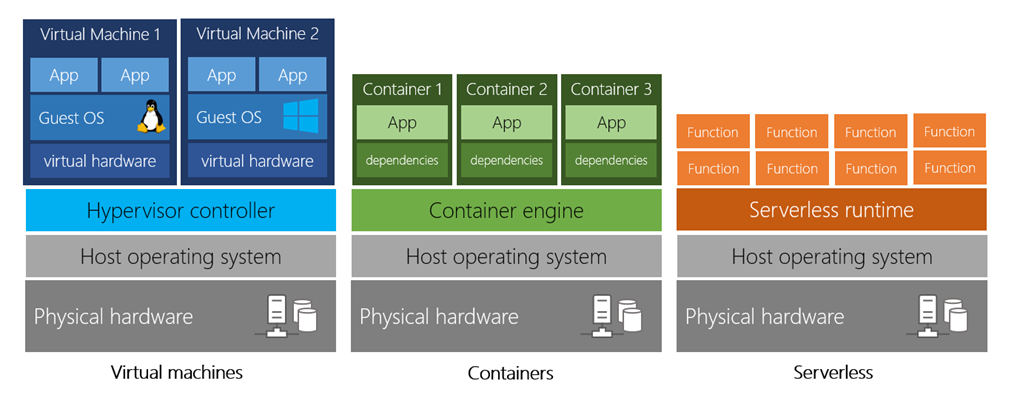
Here’s a diagram comparing the three compute approaches we’ve covered.
Diagram showing a comparison of virtual machines, containers, and serverless computing

Storage

Most devices and applications read and/or write data. Here are some examples:
  • Buying a movie ticket online
  • Looking up the price of an online item
  • Taking a picture
  • Sending an email
  • Leaving a voicemail
In all of these cases, data is either read (looking up a price) or written (taking a picture). The type of data and how it’s stored can be different in each of these cases.
Storage gauge
Cloud providers typically offer services that can handle all of these types of data. For example, if you wanted to store text or a movie clip, you could use a file on disk. If you had a set of relationships such as an address book, you could take a more structured approach like using a database.
The advantage to using cloud-based data storage is you can scale to meet your needs. If you find that you need more space to store your movie clips, you can pay a little more and add to your available space. In some cases, the storage can even expand and contract automatically – so you pay for exactly what you need at any given point in time.

Summary

Every business has different needs and requirements. Cloud computing is flexible and cost-efficient, which can be beneficial to every business, whether it’s a small start-up or a large enterprise.

What is Leadership?

What is Leadership?


Leadership is the ability to impact and influence others.

Many years ago, I had the opportunity to shadow the CEO of a major technology company for one day. That one day changed my life forever. Walking through the hallways of his company, hearing him interact on phone calls and watching him tackle projects and challenges was like nothing I ever had seen before.

He was a human behavior hacker.Every single one of his actions was based on how humans work. Throughout the day, he would turn to me secretly and whisper the explanation behind the behavior we just had witnessed. That day was the start of my fascination with people and the hidden forces that make us tick. Since then, I have studied hundreds of leaders like him, looking
for patterns. ?
16 Essential Leadership Skills  

#1 : Go for the Small Yes  


Leaders are extremely adept at getting people to buy into ideas —even ones they might not normally say yes to. Two researchers, Jonathan Freedman and Scott Fraser, decided to test exactly how to get people to do something. They went door-to-door in a small neighborhood and asked people if they would put up a large sign on their front lawn that said “Drive Carefully.”

Only 20 percent of the people contacted said they would put up the sign in their yard. I actually was surprised a full 20 percent said yes, but it was still a small percentage. Then they asked people if they would put up a smaller three-inch sign saying “Drive Carefully” in their window. Many more people said yes to this. Then the researchers came back three weeks later and asked those same people to put up the much bigger sign in their yard. This time, 76 percent of the people said they would put the larger sign on their lawn.

What does this study tell us? A LOT. It’s the perfect example of how asking for a small request first will help you get a ‘yes’ to a bigger request later. Why does this work? People who first put up the small sign began to feel helpful. They also made a verbal as well as written agreement with the researchers to drive safely. In fact, these people most likely felt like very good citizens for putting up the sign.


Therefore, when researchers returned and asked people to put up the larger sign, they had very few barriers to break. The homeowners already had been in agreement with the researchers, already had thought of themselves as helpful citizens and already had changed the look of their house by adding a message. Making it bigger would take a very small mental change, and this is why 76 percent said yes the second time.

#2 : Embrace the Pygmalion Effect  


If you want to motivate the people around you, put away your wallet. Don’t offer a bonus, instead break out the compliments. A study by Professor Norihiro Sadato and his associates focusing on social rewards found that receiving praise–not cash–was the best way to motivate participants.

This is counter intuitive. Most of our society is structured around using cash motivators to increase our happiness. When you perform well at your job, you get a salary increase. When you want to reward an employee, you give them a bonus. When you need an incentive to motivate a child to do well, you dole out an allowance.

However, when researchers asked forty-eight participants to complete a finger-tapping activity, the groups that received praise for their performance showed a significantly higher rate of improvement relative to other participants. Why is this the case? First, the researchers discovered that social rewards such as praise are registered in the same part of the brain that lights up when the subject is rewarded with money! Second, when you assign someone a positive label, such as being highly intelligent or being a good person, that actually cues them up to live up to that label.


This is called the Pygmalion Effect. In one study about fundraising, the researchers told average donors that they were, in fact, among the highest donors. Can you guess what happened? Those donors then donated above average.

Takeaway

Leaders constantly give their team and those around them genuinely good labels (it doesn’t work if you are fake or manipulative.) They want everyone around them to live up to their best selves.


Give praise, not cash. Be sure to stick to positive truths. You can say, “You are one of our best customers” or “You’re such a pleasure to do business with.” In that way, they will actually want to be one of your best customers and try even harder to be a pleasure to do business with.

 #3 : Logic or Emotion?



Do you think the world’s greatest leaders primarily use logic or emotion? Our friends at Quantified Communications analyzed the communication patterns of the global leaders on Fortune’s 2016 list to see if they communicate differently.

They used their communication analytics platform to measure content samples from each leader. To measure persuasion, they analyzed three distinct tactics: logic, intuition and emotion.

Logic appeals to our heads and includes language that establishes reason, proof, and insight–citing research and statistics to support main arguments.
Intuition appeals to our gut. These appeals establish credibility through language that convinces audiences to see the speaker as an expert, including achievements, testimonials and case studies.
Emotion, of course, appeals to our hearts. These are the stories, the imagery and the metaphors that help audiences become personally invested in the message 
The researchers expected to see a combination of all three appeals. After all, a speaker’s job in crafting a persuasive argument is to understand the audience’s needs and create the right blend of appeals to head, gut and heart to meet those needs.

But Fortune’s greatest leaders used an unexpected blend. Instead of relying on logic, the world’s greatest leaders used 2.9x more appeals to emotion and 3.4x more appeals to intuition.


This preference for emotional and intuition-driven language was universal among the leaders on Fortune’s list, from politicians and corporate leaders to activists, journalists and artists.

Takeaway

Leaders use a blend of emotion, intuition and logic to appeal to their audiences, BUT focusing on the heart is more important than focusing on the head.


Don’t forget to make the emotional appeal to your audiences. Check out our example with Vanessa’s TedX London talk.

#4 : Choose the Right Seat at the Table 


First, leaders always get a seat at the table. That’s a given. But which seat is best? Leaders know how important body language and spacing is for perception. In fact, there is some fascinating research behind how and where we sit affects our interactions. If you walked into a conference room like the one pictured on the right, where would you sit?

The most powerful seat is seat “A”. Why? This seat is at the head of the table and is facing the door, so those sitting here can see everyone in the room as soon as they walk in. Here’s the catch — not all leaders want to sit in the most powerful seat all the time. If you are going into a room to watch someone else present, attend a negotiation, or be seen and not heard, you would want to pick a different seat.


Each seat means something different, and you should know the psychological layout of every room you enter.

 #5 : Avoid Empty Calorie Time 



Have you ever spent hours doing something and then realized later it was a complete waste of time? This is especially frustrating when the activity itself had absolutely no purpose or benefit. I call this empty calorie time—we waste time doing nothing, but still use valuable brain energy.

Leaders are extremely purposeful with their mental calories. They don’t waste mental energy on junk activities. They consume and stick with nutritious mental nuggets.

Here’s why we are sucked into empty calorie activities. We:

  • Are too tired to do anything productive.
  • Want to stop working, but feel too guilty to take a real break.
  • Are bored.
  • Are procrastinating to avoid a project or activity that we dread.

According to one study, when people were mind-wandering, they reported feeling happy only 56 percent of the time. That is because in mind-wandering, our brain can’t recuperate and it can’t build–it’s stuck in limbo. It’s like eating cotton candy when you are hungry–you are eating, but it isn’t helping much.

Takeaway

Leaders are extremely judicious with their mental energy. If they want to take a break, they take a real break–not watching TV or skimming Facebook. They let their mind take a real break with exercise, meditation, yoga or creative activities, which actually boost brain activity.


As more and more devices, games and social media networks enter into our lives, we have to protect our time. If you need a break, actually take a mental break–don’t fill it with empty calorie activities.

#6 : Ask Behavioral Questions


It’s often said that leaders ask great questions. But what does a ‘great question’ really mean? Truly great leaders ask questions that crack people open. This is a concept called Behavioral Interviewing.

Behavioral interview questions are designed to reveal the true nature of a candidate’s personality, motivations and values, so both the candidate and interviewer have a more productive interaction.

The right questions can unlock someone’s personality and help you get to know someone’s behavior. Here are some of my favorites:

  • What’s something that you used to believe but no longer believe?
  • Tell me about your best and worst days at work.
  • You have two teleportation devices. Where do you place them and why?

 #7 : Set BIG Goals



Your goals should terrify you just a little bit.

In my recap of the book, Elite Minds, I talk about how you should be only 60% sure you are going to achieve your goal. It should make you sweat a little when you think about it. According to a study published online in the Journal of Consumer Research, being more ambitious actually makes you happier.

Those who set high goals are more satisfied than their counterparts with lower expectations. University of California-Riverside professor Cecile K. Cho had one group of research participants pick stocks and set a high target rate of return. They were told they could set a rate between 6 percent and 20 percent. The low goal-setters were not nearly as happy with their returns AND were more disappointed by their losses. The high goal-setters were more happy with their returns AND less disappointed by their losses.


When we set big goals, we get big rewards. Even if we lose, we feel like we gave it our best try, which is fulfilling in a different way.

#8 : Abandon Revenge. It’s Not Worth it.



Revenge is like throwing a hot coal at someone else—we burn our own hand more than the person we are trying to hurt. Study after study has found that when we make business or life decisions based upon revenge—or the desire to hurt someone else–we only end up losing money or having more difficulty ourselves. Here’s a few ways to curb vengeful thoughts:

Get perspective: Think of bigger problems to get your situation into perspective. Write it down: Expressive writing about your anger and resentment have been shown to eliminate these feelings entirely, giving you relief without having to act on your desire for revenge.

#9 : Embody the Body Language of Leaders


Do you know an alpha when you see one?

Alpha: The alpha is the individual in the community with the highest social rank.

We all know someone who has a natural magnetism. Someone who walks into a room and people look. Someone who speaks and people listen. Someone who was born to lead. Is that someone you? And if so, how do we know an alpha when we see one? Leaders have a very specific set of nonverbal behaviors that signal to others in the group and to the outside world that they are confident. Let’s test your knowledge of the body language of leaders:

What do leaders do? Smile less. Contrary to popular belief, smiling actually is seen as a sign of submission. Submissive people tend to smile more at alphas to show they are agreeable and non-threatening to their power. Alphas in turn (think Clint Eastwood or Francis Underwood) smile much less because their power is enough to put people in line. Women in particular need to be careful not to smile too much because it puts them in a submissive position. Dr. Nancy Henley found that women smile in 87 percent of social encounters, while men smile only 67 percent of the time.


What do leaders do? Embrace stillness. Leaders move less they because are observers, and others move around them. If you want to signal confidence and power, try not to fidget, pace or hop. Be in control of your nonverbal communication, just like you can be in control of a project or task. Stillness is perceived as more powerful and in control.

 #10 : Invest in Communication Skills


In our hyper-connected world, leaders have to be best-in-class communicators. And they have to do this in a variety of settings and across countless channels — from the phone to the boardroom to Slack to the elevator. Here are some fascinating facts for you:

Leaders spend 75 to 80 percent of their working hours communicating.
More than 60 percent of consumers say their perception of a CEO affects their opinion of the company as a whole.

Millennials, who account for 21 percent of consumer purchasing power, buy based on purpose and cause from brands they love, led by people they believe in.

With these heightened and evolving customer expectations, now more than ever, leaders need to serve as the very best role models for stellar executive communication. 

https://youtu.be/r6rtR6y9zuY

#11 : Talk to Yourself


Leaders talk to themselves in a very specific way. In other words, their self-talk sounds different than non-leaders. The popularity of the Law of Attraction and other philosophies that prescribe the use of positive mantras don’t quite get it right. Repeating in your head over and over again that you want to get a raise most likely will not affect your salary in any way. Instead, a review of more than 25 studies found that the most effective kind of self-talk is called “instructional self-talk.”

Instructional self-talk is the internal commentary that happens while we are trying to complete a challenging activity or task. For example, while completing a difficult report at work, your instructional self-talk might sound like, “Okay, open up Power-point, find a title image, make a chart on the recent statistics…” This kind of self-talk actually helps us in ways we just are beginning to understand.


Researchers believe it helps us battle distractions and keep us logical with our tasks. Researchers also found that self-talk is the most successful when thinkers first ruminate on their end-goal, make a plan and then walk through it. So, try planning out what you want to do before starting.

 #12 : Decide You Will Be Awesome  


Have you ever wondered what makes someone a world-renowned musician or a critically-acclaimed novelist? In 1997, Gary McPherson decided to study musicians—namely, what exactly contributed to a successful musician? Was it practice? Genetics? Environment? He studied 157 randomly selected kids as they picked and learned a musical instrument. Some went on to be professional musicians and others quit playing after they left school. He was looking for patterns. Were there traits or characteristics that all of the successful musicians had?

Amazingly, it was not the obvious ones. It was not IQ, aural sensitivity, math skills, natural rhythm or even their parents that dictated success. Only one question provided a clue indicating which students would be successful and which wouldn’t. He asked each participant before they even selected their instrument one question:

“How long do you think you will play the instrument you choose?”

The answer to this question predicted whether a student would be successful. If they thought they would play an instrument their whole life, they did better. If they thought they would play only temporarily, they did not play as well. Their success had nothing to do with skills—it was all about their attitude!

We do not need any inherent skills to be good at what we do. We only need an attitude that we are going to stick with it. Our minds and skill set will grow with us as we stick to our goals. How can we use McPherson’s study in our own life?

For more 40 years, John C. Maxwell has inspired individuals to live leadership. His valued advice to leaders is:


“Learn to say ‘no’ to the good so you can say ‘yes’ to the best.” – John C. Maxwell

 #13 : Don’t Explain, Question


What are the conversations you have with yourself in your head? Researcher Albarracín Senay thought self-talk would be an interesting angle to study. He wanted to see if the sentence structure or the types of words our mind uses to talk to ourselves changes our plans and actions. He decided to test this by having participants in his experiment work on a set of anagrams where they had to change the words (like kale to lake). Before participants did this, Senay asked one group simply to think about whether they would work on anagrams, and he asked the other group just to think about the fact they would be doing anagrams soon. The first group went into wondering mode, “Will I?” The second group was gearing up to do something: “I will.”

Which group do you think did better? The group with the wondering minds did many more anagrams than the gearing up group! Participants who kept their minds open were more successful than those who were trying to will themselves. This seems illogical. Our will should make us more successful not less, right? Not always. Freedom of choice was given to the wonderers, and this might be an intrinsic motivation to do better.


Senay tried this again by having two groups of participants write out the statements: “Will I?” and “I will.” Then they had to work on anagrams. Again, the “Will I?” group performed better. Senay also wanted to try a real-life experiment. To do this, he had participants think about “Will I?” or “I will” before exercising. “Will I?” again produced a better commitment from volunteers to exercise. When they were asked about their new goals, those who had been primed in wondering mode stated positive motivations for exercise such as wanting to feel healthy and having a good lifestyle. While those who were trying to assert their will stated reasons such as guilt and shame for not working out!

#14 : Drive with Your Core


Over the course of six years, Jim Collins and Jerry Porras conducted a study at Stanford Graduate School of Business where they analyzed data on companies founded prior to 1950 (thus existing through several eras) and reached exceptional levels of success. From their study, they discovered surprising patterns that allowed visionary companies to surpass their competition. One of the key characteristics that sets visionary companies apart from their competition is they have a core ideology in place that drives almost every decision they make.

You can think of a core ideology like a vision statement except it’s much more actionable. It’s your values and the reasons why you do what you do; it’s what motivates you to keep going in hard times and embodies the factors you think about when making life’s most important decisions.

Whether you’re a big company like HP, developing innovative new technology, or a parent trying to raise your children as best as you can, having a clear, written core ideology can help you make decisions and prevent you from doing things you may regret. Because whenever you are in a situation where you don’t know what to do, your core ideology is there to guide you. You just have to make the decision that most closely matches your ideals.

How do you create a core ideology?

Make a list of your moral and ethical values. Add the characteristics you value most (creativity, compassion, friendliness, work ethic, etc.) Use those values and traits to create an actionable statement that embodies who you want to be and what you want to do with your life. Don’t worry about making it perfect. Your core ideology is purely for you and can be whatever you want it to be as long as it’s capable of guiding your life.

#15: Understand the Science of Gender Differences.



Men and women are wired differently. If you know how, it gives you an incredible leg up to leverage both genders’ strengths and weaknesses. Researchers Annis and Nesbitt found that these gender differences are neurological. Men and women actually think differently.

This means that men and women are processing differently during meetings, breaks and tasks. Women also develop their pre-frontal cortex at a younger age, which is why they take fewer risks as teenagers than males of the same age. Men, on the other hand, have a larger amygdala, which means they have more processing power for threats. This means that men tend to default to thinking about threats and competition, while women have more processing power for details and connecting issues.


This is why women often will include more details in their decision making, and they’ll verbalize those details during meetings or in conversations. This often is misinterpreted by male peers to mean that women’s deliberations take more time, when they actually do not.

#16 : Why is Good Leadership Important ?  



I’m going to tell you something crazy, and you’re not going to believe me. But it’s the hard truth:

Success doesn’t bring happiness. Happiness brings success.

The research on happiness is clear: if we want to be more successful, we should focus on happiness. If you’re like me, you have frequently thought, “When I achieve ___, I will be happy.” or “After I get ___, then I’ll be happy.” This doesn’t work! We have been studying happiness for more than four years at our lab, asking people inappropriately personal questions, comparing their results and looking for patterns.

Leaders are happier.


One of the biggest happy Aha! moments we had was realizing that the best leaders don’t put happiness second. They understand that if they are happier, the people around them will be happier; they will be better communicators and have a bigger impact.

What is .NET ?

What is .NET ?

 .NET is an open source developer platform, created by Microsoft, for building many different types of applications. 

.NET

.NET is a free, cross-platform, open source developer platform for building many different types of applications.
With .NET, you can use multiple languages, editors, and libraries to build for web, mobile, desktop, gaming, and IoT.

Languages

You can write .NET apps in C#, F#, or Visual Basic.


C# is a simple, modern, object-oriented, and type-safe programming language.
F# is a cross-platform, open-source, functional programming language for .NET. It also includes object-oriented
and imperative programming.

Visual Basic is an approachable language with a simple syntax for building type-safe, object-oriented apps.

Cross Platform

Whether you’re working in C#, F#, or Visual Basic, your code will run natively on any compatible OS. Different .NET implementations handle the heavy lifting for you:
  • .NET Core is a cross-platform .NET implementation for websites, servers, and console apps on Windows, Linux, and macOS.
  • .NET Framework supports websites, services, desktop apps, and more on Windows.
  • Xamarin/Mono is a .NET implementation for running apps on all the major mobile operating systems.

One consistent API

.NET Standard is a base set of APIs that are common to all .NET implementations.


Each implementation can also expose additional APIs that are specific to the operating systems it runs on. For example, .NET Framework is a Windows-only .NET implementation that includes APIs for accessing the Windows Registry. 

Libraries

To extend functionality, Microsoft and others maintain a healthy package ecosystem built on .NET Standard.
NuGet is a package manager built specifically for .NET that contains over 90,000 packages.
Design a site like this with WordPress.com
Get started